PDF for GravityView Plugin Documentation: How to Install and Configure

PDF for GravityView is a premium plugin for Gravity PDF that generates PDFs of your Multiple Entries and Single Entry layouts in GravityView. You can buy the extension from the Gravity PDF Extension Shop.
The following GravityView layouts and extensions are supported:
- Layouts: Tables, DataTables, List, Map, Layout Builder, and DIY
- Maps: display image maps in PDFs
- Multiple Forms: joins and unions
- Advanced Filters
- A-Z Filters
- Featured Entries
- Dashboard Views
- GravityMath: footer calculations in Table and DataTables PDFs
- Ratings & Reviews: stars, votes and the reviews link
Prerequisites
To use PDF for GravityView, you need:
- Gravity Forms (any license type)
- Gravity PDF 6.17.2+
- GravityView 3.0.1+ (any license type)
Your web server must also run PHP 7.4+ and WordPress 6.6+.
Installation
This update includes Multiple Entries PDFs, bulk downloads, maps, Vantage theme support and more. See what's new, or read the upgrade guide if you're upgrading from 1.x.
Follow the installation guide to upload the extension to your WordPress site and add your license key for automatic updates.
Supported View Types
GravityView offers several View types. All of them can be turned into a PDF, although DIY Views only have basic support:
| View Type | Multiple Entries PDF | Single Entry PDF |
|---|---|---|
| Table | ✅ Yes | ✅ Yes |
| DataTables | ✅ Yes | ✅ Yes |
| List | ✅ Yes | ✅ Yes |
| Map | ✅ Yes | ✅ Yes |
| Layout Builder | ✅ Yes | ✅ Yes |
| DIY | ◐ Basic | ◐ Basic |
View Themes
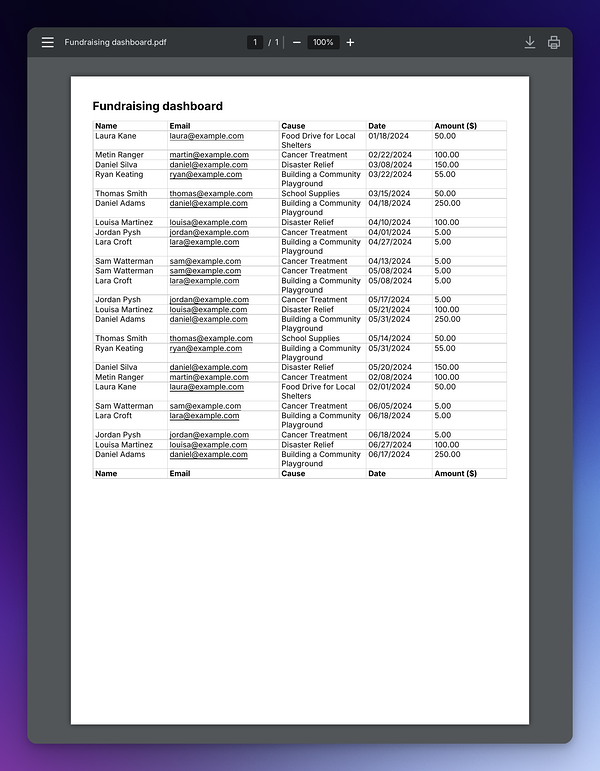
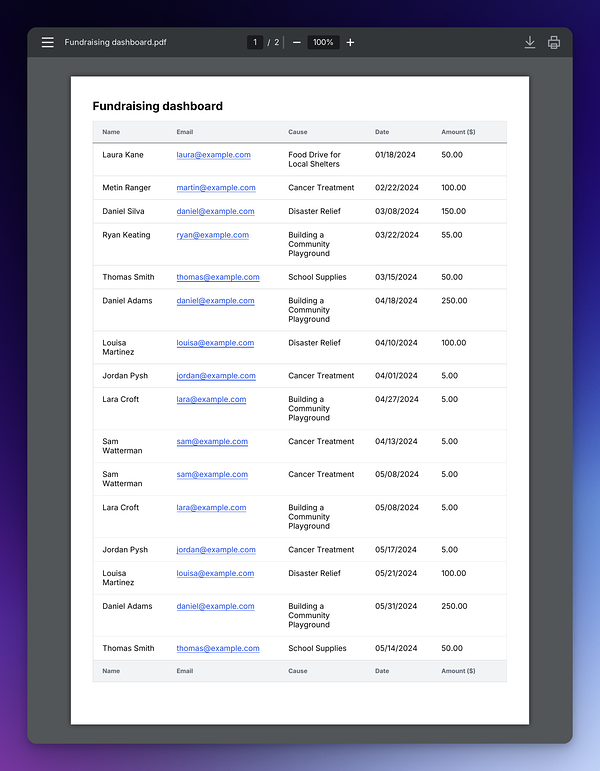
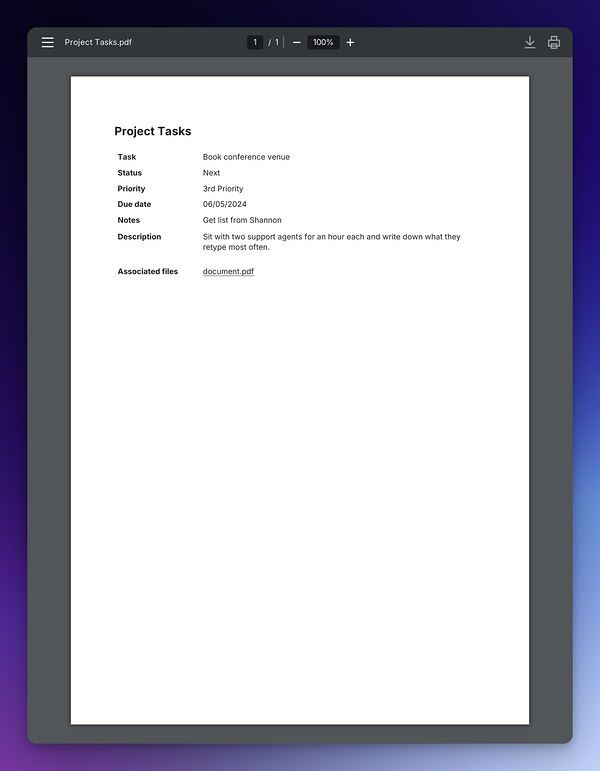
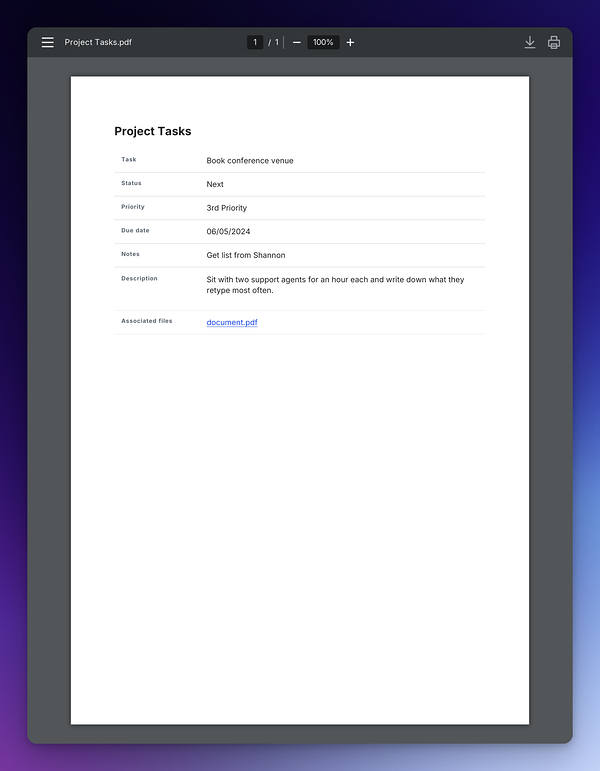
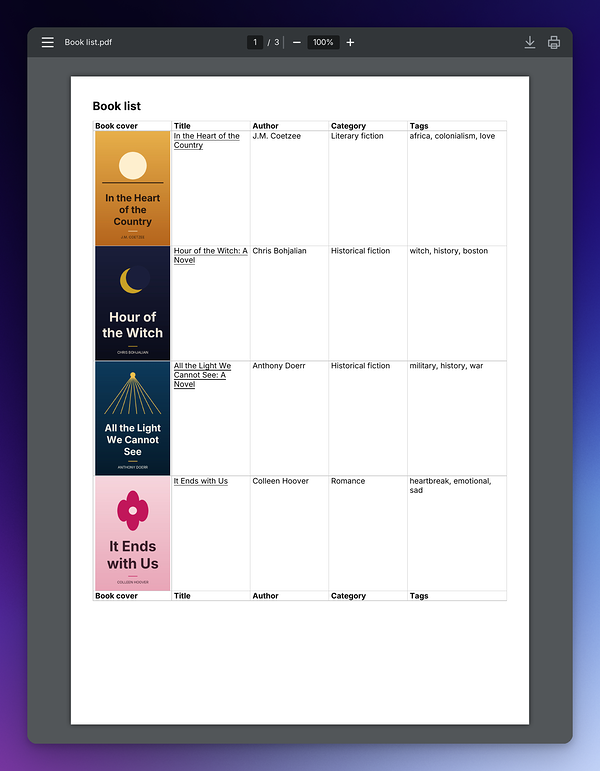
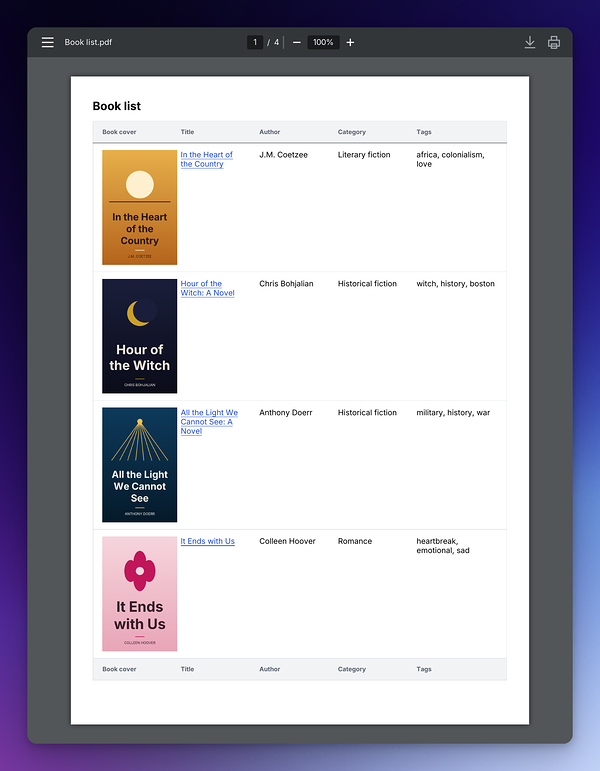
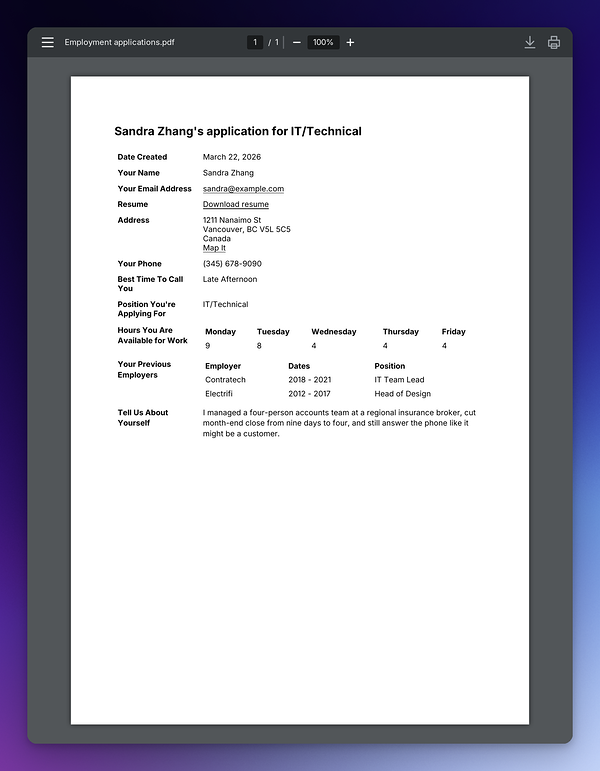
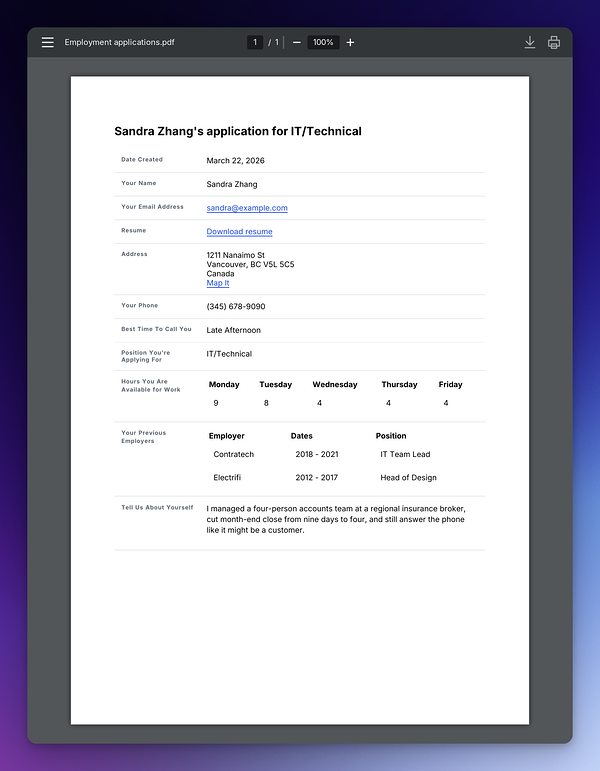
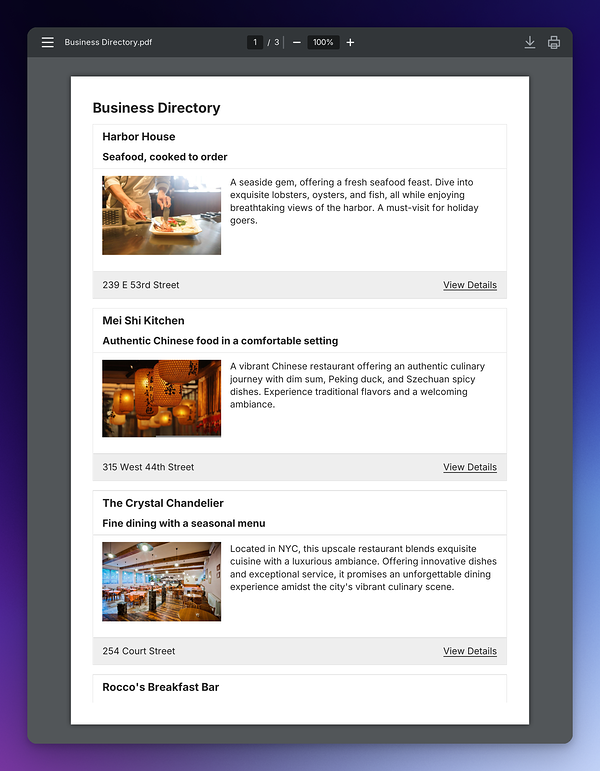
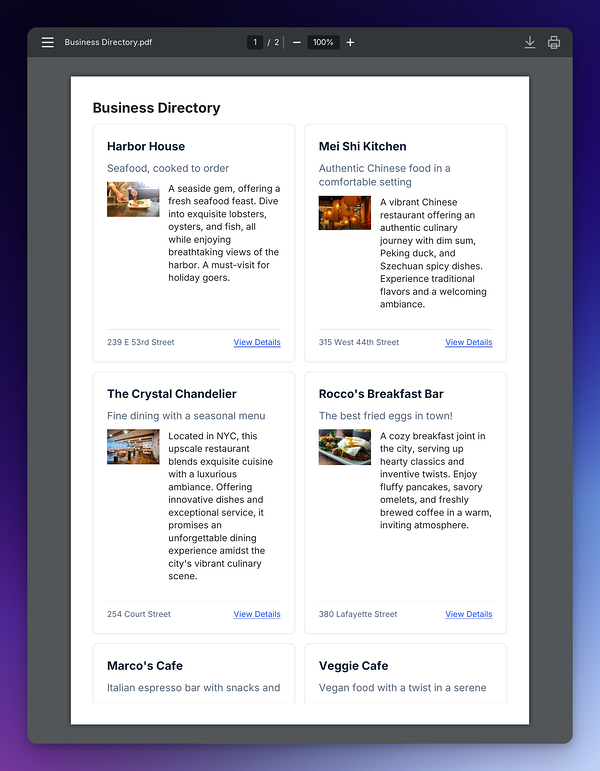
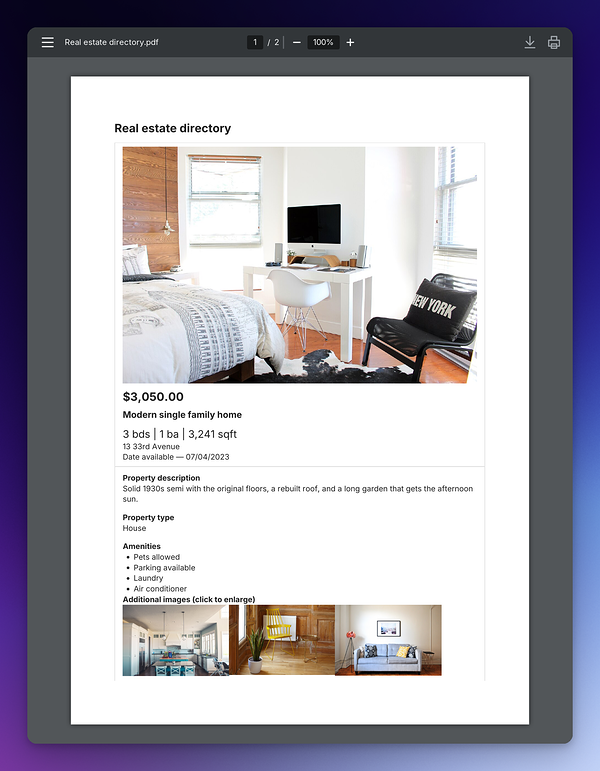
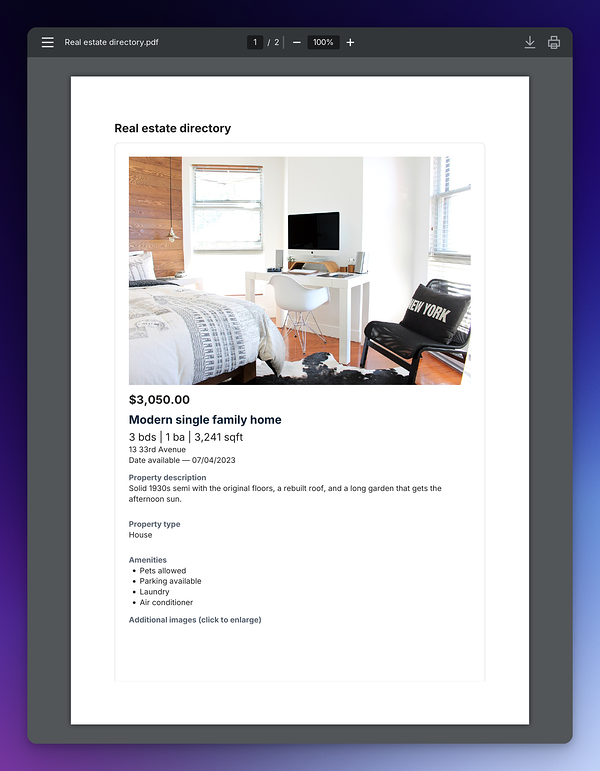
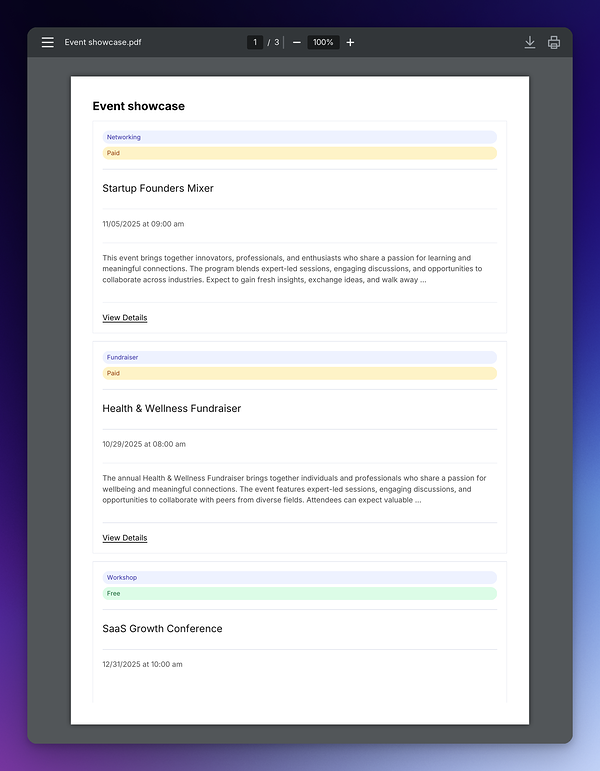
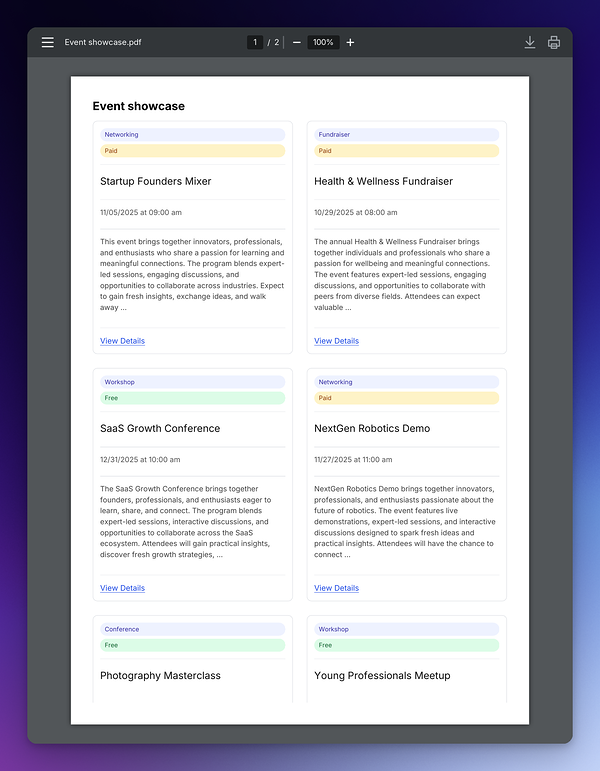
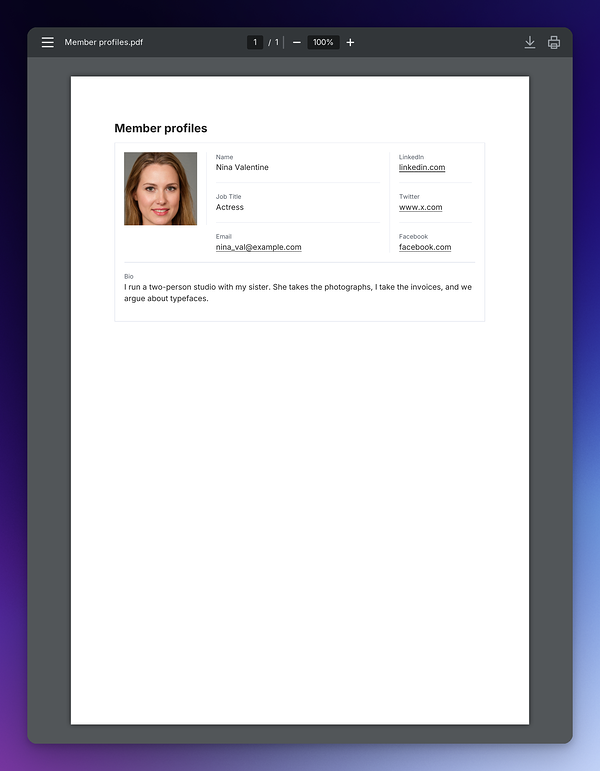
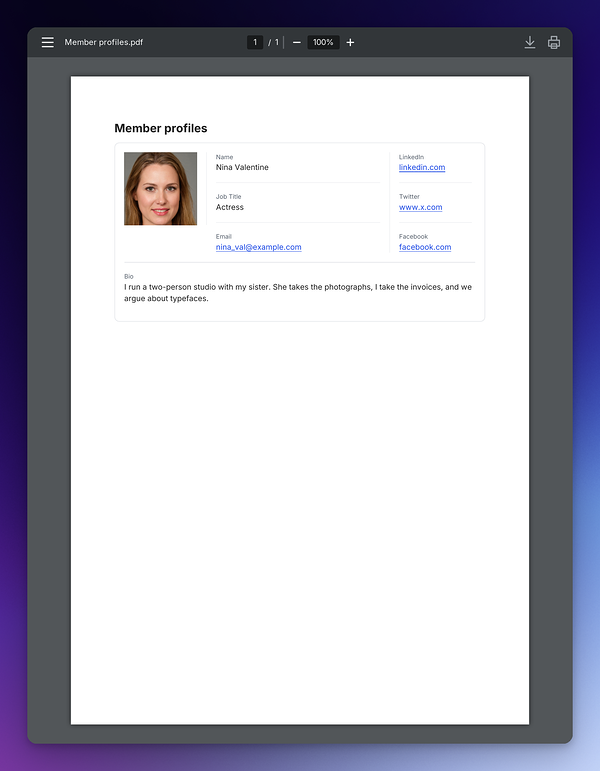
Each View type has its own PDF layout, and how it's styled depends on the View's theme, introduced in GravityView 3.0:
- Legacy (no theme): the PDF uses the extension's standard styling, based on GravityView's legacy layouts.
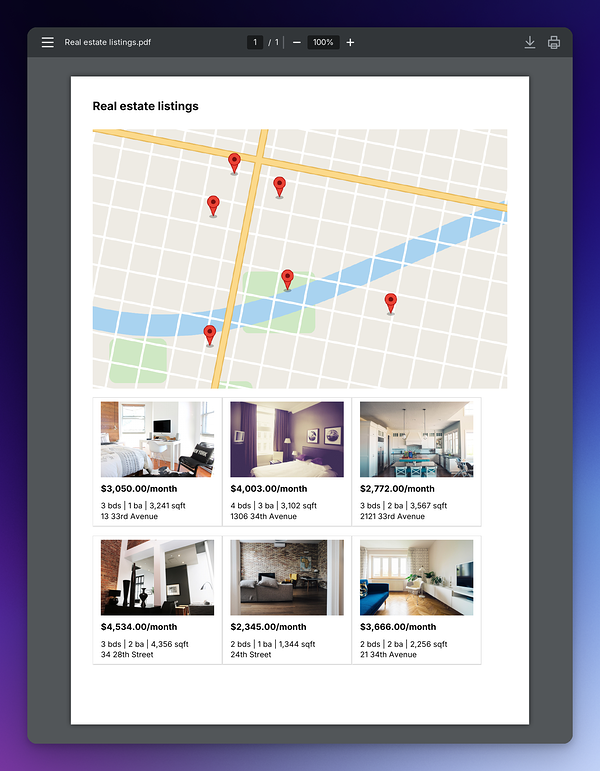
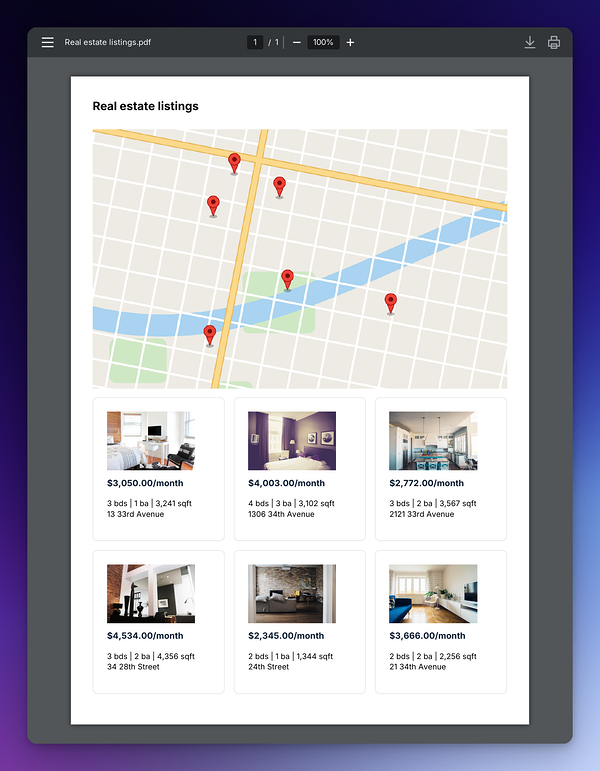
- Vantage: both PDF types use the theme's colors and card styles. Colors you've customized in the View Editor carry into the PDF, and the rest use the theme's defaults. The Multiple Entries PDF also uses the View's Card Grid settings.
- Table
- DataTables
- List
- Map
- Layout Builder
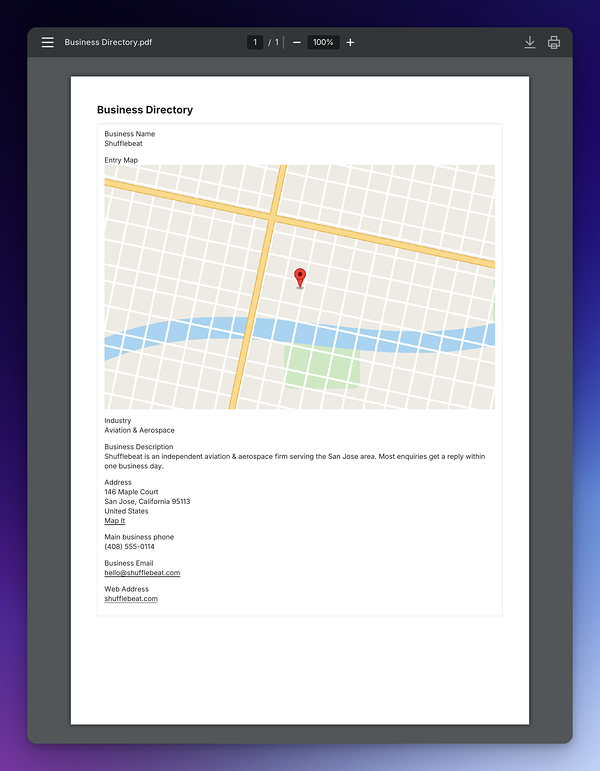
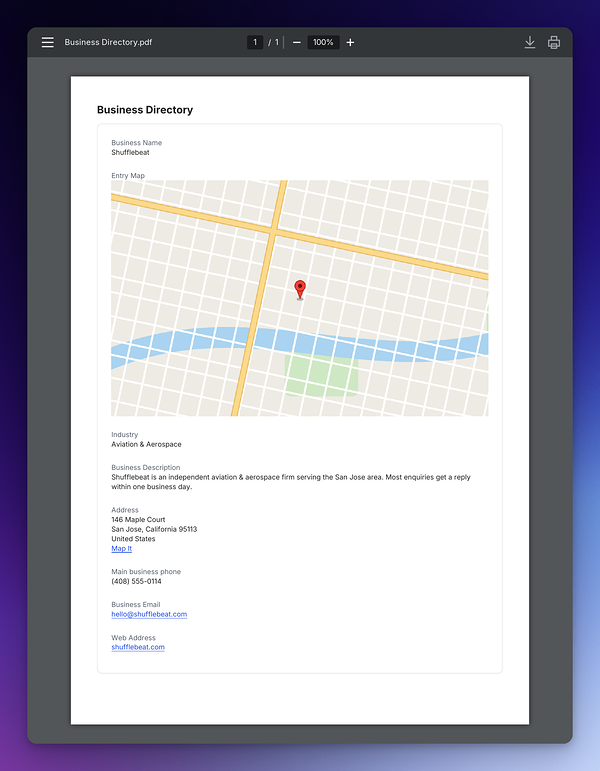
- DIY
Embedded Views
A View field is displayed in the Single Entry PDF using the embedded View's own Multiple Entries layout e.g. a table or list of entries. The embedded View gets styled with the outer View's theme, and doesn't use the Card Grid.
When displayed in a PDF, only the first page of entries are included. You can adjust the number of entries included using the Override page size setting, or using the View field's page size setting.
Multiple Entries PDFs
A Multiple Entries PDF displays the same list of entries from your View in a PDF document. Visitors download it from a link you add to the View. You can also link to it from a page, post, or Gravity Forms confirmation or notification (see PDF Links Outside a View), but it can't be attached to a notification.
Adding a Download Link
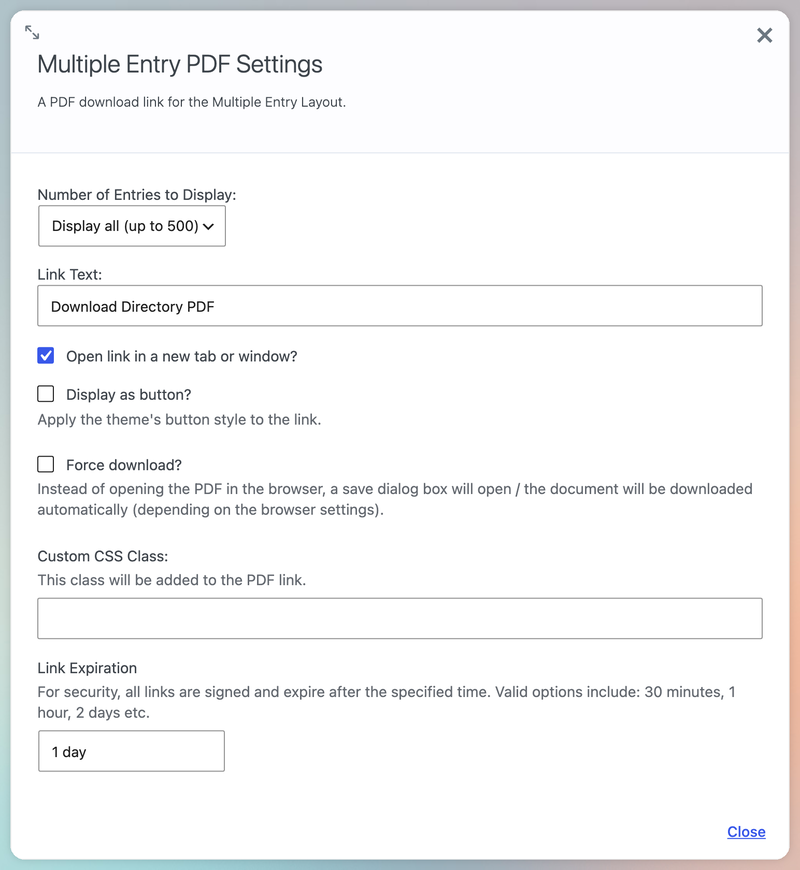
To display a download link or button to the View add the Multiple Entry PDF widget in the Multiple Entries layout. The PDF uses the visitor's search, filters and sort order, so it matches the list they're looking at. On a DataTables View, this includes searching, sorting and paging done inside the table.
The widget has these settings:
Number of Entries to Display
- Control how many entries the PDF includes (see how the entries are chosen):
- Display all: every entry that matches the visitor's search (up to 500).
- Display current page: only the entries on the page the visitor is viewing.
- Display 10 to Display 250: show that many entries, starting from the first.
- A developer can raise the 500-entry limit and change the choices for this setting.
Link Text
- The text of the download link.
- The default value is "Download PDF".
Open link in a new tab or window?
- When enabled, the PDF opens in a new browser tab or window.
- This setting is disabled by default.
Display as button
- When enabled, the link uses your WordPress theme's button style.
- This setting is disabled by default.
Force download
- When enabled, the PDF is downloaded instead of opening in the browser. Depending on the browser's settings, the visitor may be asked where to save it.
- This setting is disabled by default.
Use Smart Loading Indicator
- When this setting and Force download are both enabled, a loading indicator shows while the PDF is generated and downloaded.
- Only available when the Gravity PDF Enhanced Download extension is installed.
Custom CSS Class
- CSS classes to add to the link, so you can style it.
Link Expiration
- How long each PDF link works once it's displayed. The View creates a fresh link when the page reloads or its cache expires, so this mostly affects links that are copied, shared or bookmarked. The default is 1 day.
- The setting accepts a number and a unit of time e.g.
30 minutes,12 hours,2 days,1 week,6 monthsor1 year. - The maximum period you can set is 1 year.
- Invalid options are ignored and the expiration set to 1 day
How Many Entries Are Included
The entries displayed in a Multiple Entries PDF are worked out when the PDF is generated, and in this order:
- Entries that match your View's settings and filters, plus any search the visitor has applied on the page. If the View has Hide entries until search is performed turned on, the PDF has no entries until a search is applied.
- The visitor's sort order. Sorting is only carried into the PDF when the View's Enable sorting by column setting is on. DataTables Views are the exception and their sort is always used.
- The Number of Entries to Display setting decides how many entries to include. If your View has no widget (e.g. using the
[gv_pdf_link]shortcode) then the View's page size is used. - The Multiple Entries PDF never contains more than 500 entries. A developer can change this limit.
When no entries match, the PDF is still generated. It contains the View's "No entries match your request" message.
PDF Settings
The View Settings meta box has two PDF tabs: Multiple Entries PDF and Single Entry PDF. These settings control the look and feel of each PDF type.
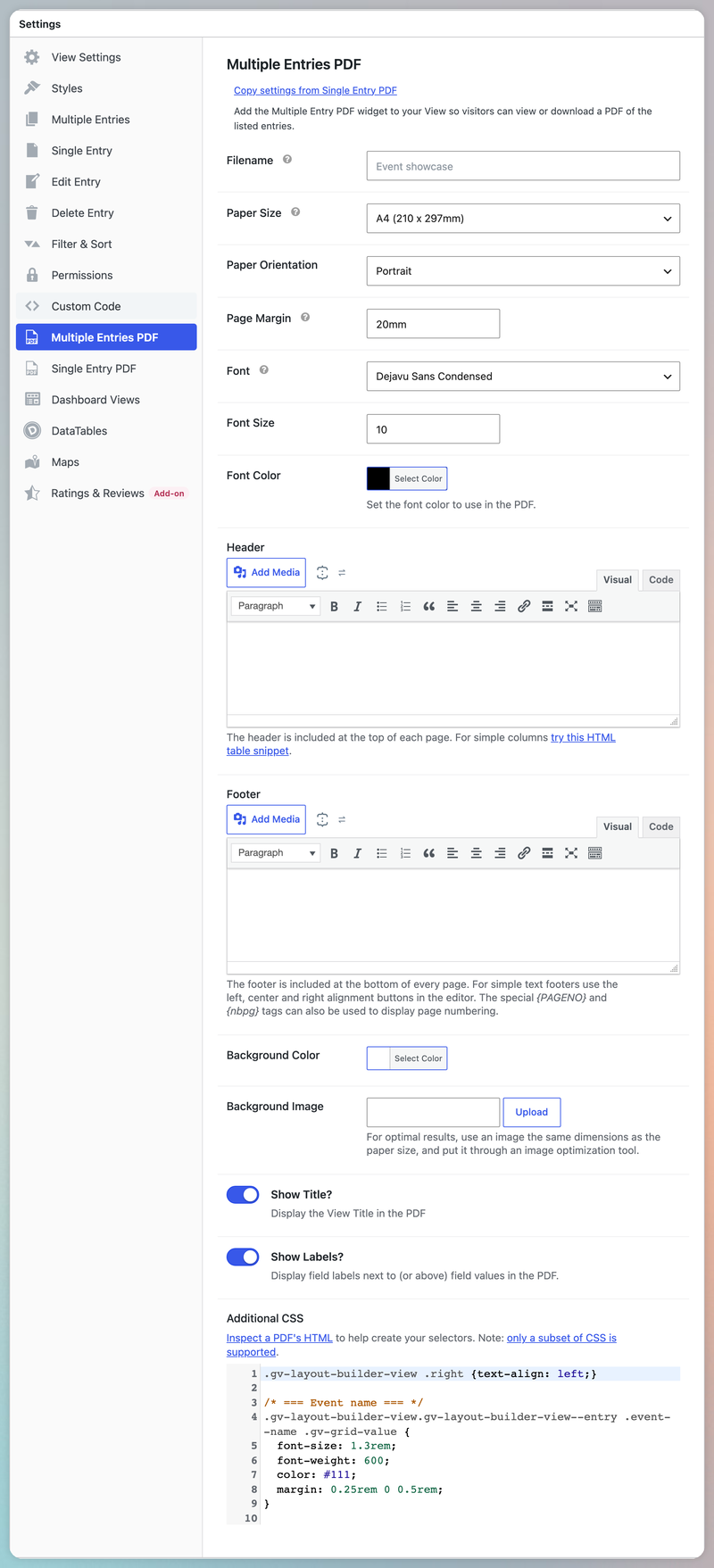
Both tabs have a Copy settings button so you can easily apply the same visuals across your PDFs.
Filename
- The name of the PDF file, eg.
Staff_Directory.pdf. - Leave it empty to use the View name. If the View has no name
document.pdfis used. - Merge tags are not supported in this tab's filename, because a Multiple Entries PDF isn't about one entry. If you add a merge tag, the default filename is used. A developer can build a dynamic filename.
- These characters can be saved, but are converted to an underscore when the PDF is generated:
/ \ " * ? | : < >. This prevents problems saving the PDF on some operating systems.
Paper Size
- Sets the size of each page in the PDF.
- Choose a common size like A4, US Letter or Legal, or one of the ISO-standard A, B and C sizes, RA or SRA.
- Custom paper sizes aren't supported yet (let us know if you need them).
- The default is the Default Paper Size in the global settings.
Paper Orientation
- Sets the page orientation: portrait or landscape.
- The default is Portrait.
Page Margin
- Sets the margin around each page.
- Supported units are
mm,in,px,%andcm, eg.20mm,1in,50px,5%or2cm. - CSS shorthand sets a different margin on each side. For example,
1in 0.5insets the top and bottom to 1 inch and the left and right to 0.5 inch. - An invalid value is replaced with the default.
- The default value is
20mm.
Font
- Sets the font used in the PDF.
- To use a font that isn't listed, install it on Gravity PDF's Global PDF Settings page.
- The default is the Default Font in the global settings.
Font Size
- Sets the font size used in the PDF.
- The default is the Default Font Size in the global settings.
Font Color
- Sets the text color used in the PDF.
- The default is the Default Font Color in the global settings.
Header
- Adds a header to the top of every page, written in the WordPress Classic Editor. Insert a logo from the media library, or build a three-column table (try this code snippet).
- Form field merge tags don't work in a Multiple Entries PDF header.
- Use
{PAGENO}for the current page number and{nbpg}for the total number of pages. - After inserting an image from the media library you may need to scale it down.
Footer
- The same as the Header, but shown at the bottom of a PDF.
Background Color
- Sets the background color of every page.
- The default is white (hex
#FFFFFF).
Background Image
- Sets a background image for every page.
- For best results, make the image the same size as the Paper Size and run it through an image optimization tool before you upload it.
Show Title?
- Displays the View title at the beginning of the PDF.
- This is enabled by default.
Show Labels?
- Displays field labels next to (or above) the field values. Turn it off to print the values only.
- A developer can still override this setting with the
gfpdf_gv_show_labelfilter. - This setting was added in version 2.0 and is enabled by default.
Additional CSS
- Adds your own CSS to customize the look of the PDF. See the developer section for common selectors and examples.
- To inspect a PDF's HTML, administrators can enable PDF Debug Mode and add the HTML helper parameter to the PDF URL.
- Keep in mind that Gravity PDF only supports a subset of CSS.
The Card Grid
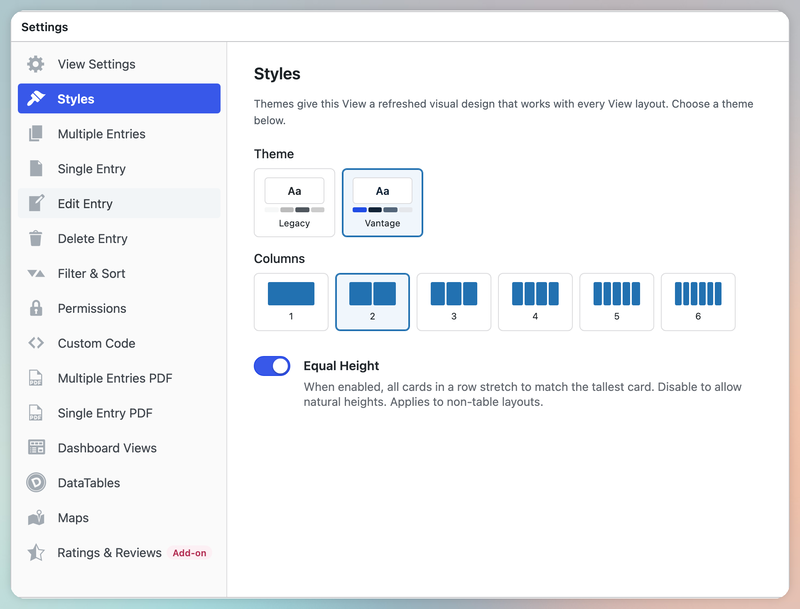
On a themed View using the List, Map, DIY or Layout Builder layout, the Multiple Entries PDF honors the View's Card Grid settings:
- Grid Columns
- Grid Gap
- Card Minimum Width
- Equal Height
Entries print in the same columns as the View, up to the 6-column maximum. Table and DataTables Views don't support the Card Grid.
The PDF lays out narrow cards differently. A List or Map card narrower than 50mm/1.97in moves its image above the other fields, and a Layout Builder column that would be too narrow wraps to a new row.
The PDF may print fewer columns than your website. See the Card Grid limitations.
Single Entry PDFs
A Single Entry PDF puts one entry from your View into its own document. You can allow visitors to download it from a link or have it emailed. You can also download several at once as a zip file, attach one to a Gravity Forms notification, or link to one from a page, post, confirmation or notification (see PDF Links Outside a View).
Adding a Download Link
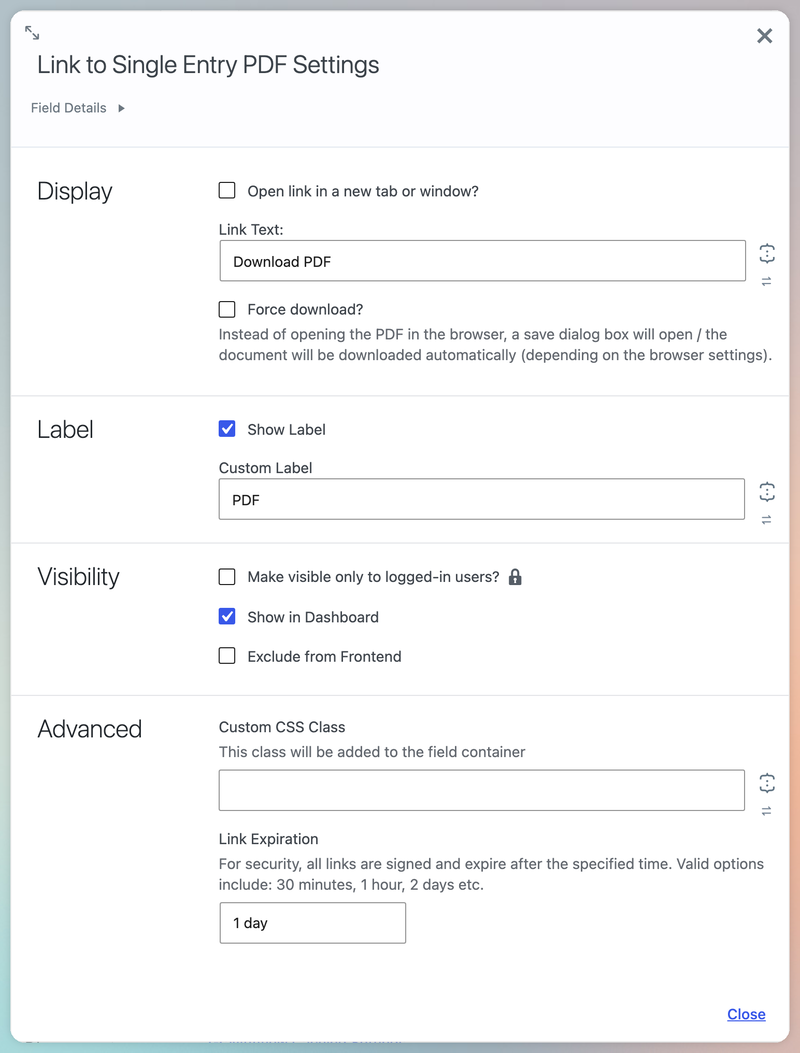
To display a download link, add the Link to Single Entry PDF field to the Multiple Entries layout, the Single Entry layout, or both.
The field has the same Open link in a new tab or window?, Force download, Use Smart Loading Indicator and Link Expiration settings as the Multiple Entry PDF widget. It also has these settings:
Link Text
- The text of the link.
- Merge tags are supported.
- The default value is "Download PDF".
Show Label
- Displays the field label in the View.
- This setting is enabled by default.
Custom Label
- The label text shown when Show Label is enabled. If it's empty, "Link to Single Entry PDF" is used.
- The default value is "PDF".
Visibility
- This field supports the same visibility settings as other GravityView fields, including Make visible only to logged-in users and Conditional Logic (if the Advanced Filter extension is enabled).
Custom CSS Class
- CSS classes to add to the field's HTML container.
- Merge tags are supported.
Share/Email a PDF
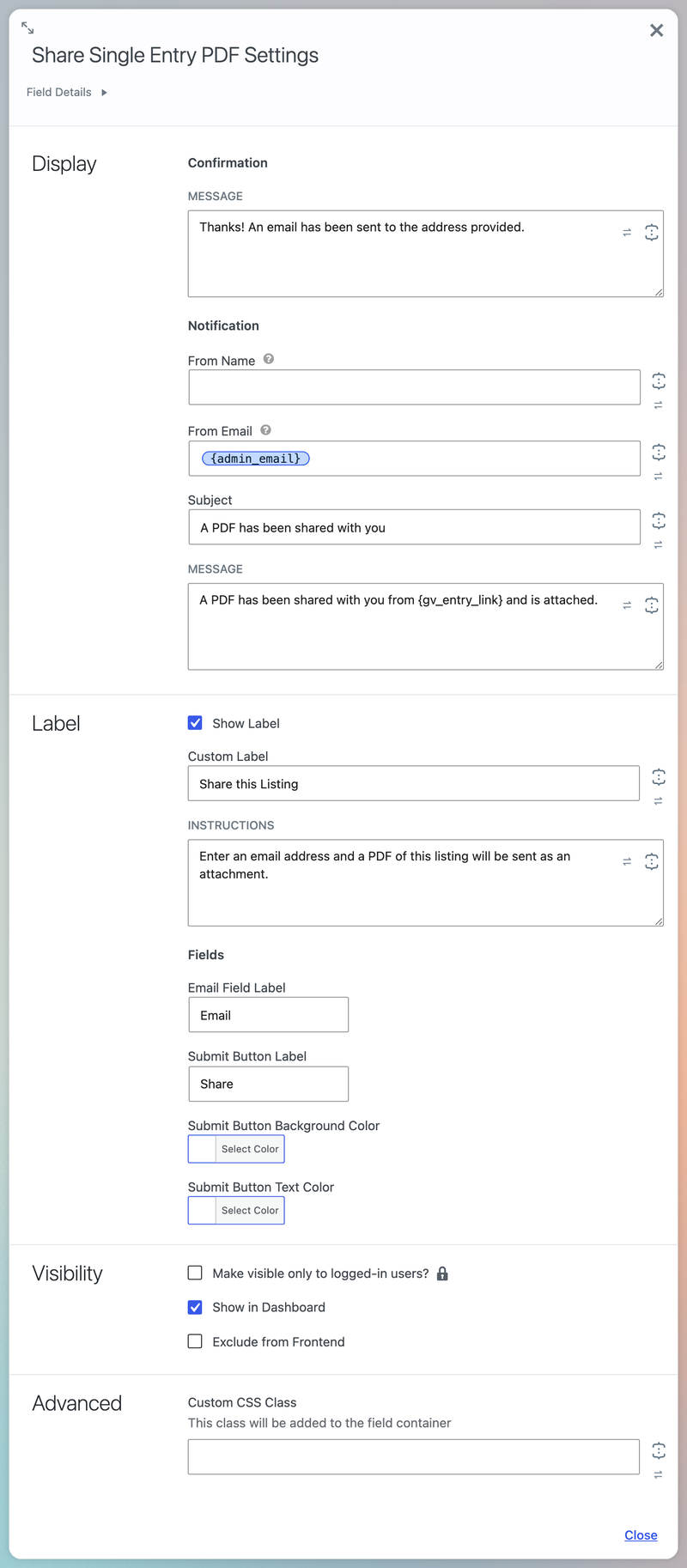
To let visitors email the PDF, add the Share Single Entry PDF field to the Single Entry layout. It displays a form where visitors enter an email address, and the PDF is sent to that address as an attachment. The field can only be added once (any extra copies are ignored).
The field has these settings:
Confirmation Message
- The message shown on-screen after a visitor submits a valid email address.
- Merge tags and most HTML tags are supported.
- The default is "Thanks! An email has been sent to the address provided."
Notification From Name
- The name the notification email is sent from.
- Merge tags are supported.
- The default is empty.
Notification From Email
- The email address the notification is sent from. To avoid deliverability issues, use an authorized address on your site's domain.
- Merge tags are supported.
- The default is
{admin_email}.
Notification Subject
- The subject line of the notification email.
- Merge tags are supported.
- The default is "A PDF has been shared with you".
Notification Message
- The body of the notification email.
- Merge tags and most HTML tags are supported.
- The special merge tag
{gv_entry_link}displays a link to the Single Entry View the PDF was generated from. - The default is "A PDF has been shared with you from
{gv_entry_link}and is attached."
Show Label
- Displays the field label in the View.
- This setting is enabled by default.
Custom Label
- The label text shown when Show Label is enabled. If it's empty, "Share Single Entry PDF" is used.
- The default value is "Share this Listing".
Instructions
- Tells visitors what happens when they enter an email address and submit the form.
- Merge tags and most HTML tags are supported.
- The default value is "Enter an email address and a PDF of this listing will be sent as an attachment."
Email Field Label
- The label of the email address field.
- The default value is "Email".
Submit Button Label
- The text on the submit button.
- The default value is "Share".
Submit Button Background Color
- The background color of the submit button. The button darkens slightly when it's hovered or focused.
- Added in version 2.0. By default, the button uses your theme's styles.
Submit Button Text Color
- The text color of the submit button.
- Added in version 2.0. By default, the button uses your theme's styles.
Visibility
- This field supports the same visibility settings as other GravityView fields, including Make visible only to logged-in users and Conditional Logic (if the Advanced Filter extension is enabled).
Custom CSS Class
- CSS classes to add to the field's HTML container.
- Merge tags are supported.
Spam Protection and Sending Limits
The share PDF form is protected from spam and abuse with the following:
- Gravity Forms' honeypot and submission speed checks are on.
- Akismet is used if active.
- Each form only sends the PDF of the entry it was displayed with.
- An IP, account, and recipient rate limit.
These usage limits apply:
| Limit | Logged out | Logged in |
|---|---|---|
| Per sender, per hour | 5 | 10 |
| Per recipient, per hour | 3 | 6 |
| Per recipient, per day | 10 | 10 |
| Per IPv6 network (/48), per hour | 30 | 60 |
| Whole site, per hour | 100 | 100 |
How the limits work:
- Senders are counted by IP address, so people on the same connection share an allowance.
- Recipients are counted by a normalized email address (ignoring case,
+tagsand Gmail dots). - Logged-in users who can view Gravity Forms entries are excluded
- Refused submissions are written to the PDF for GravityView log. Turn on Gravity Forms logging to view it.
- If your site is behind a proxy or CDN, set up the
gform_ip_addressfilter. - Developers can change the limit using the
gfpdf_gv_share_pdf_limitfilter.
Downloading PDFs in Bulk
To enable this feature, add GravityView's Bulk Actions widget to the Multiple Entries layout and enable the Download PDFs action. Bulk actions currently work on Table Views only.
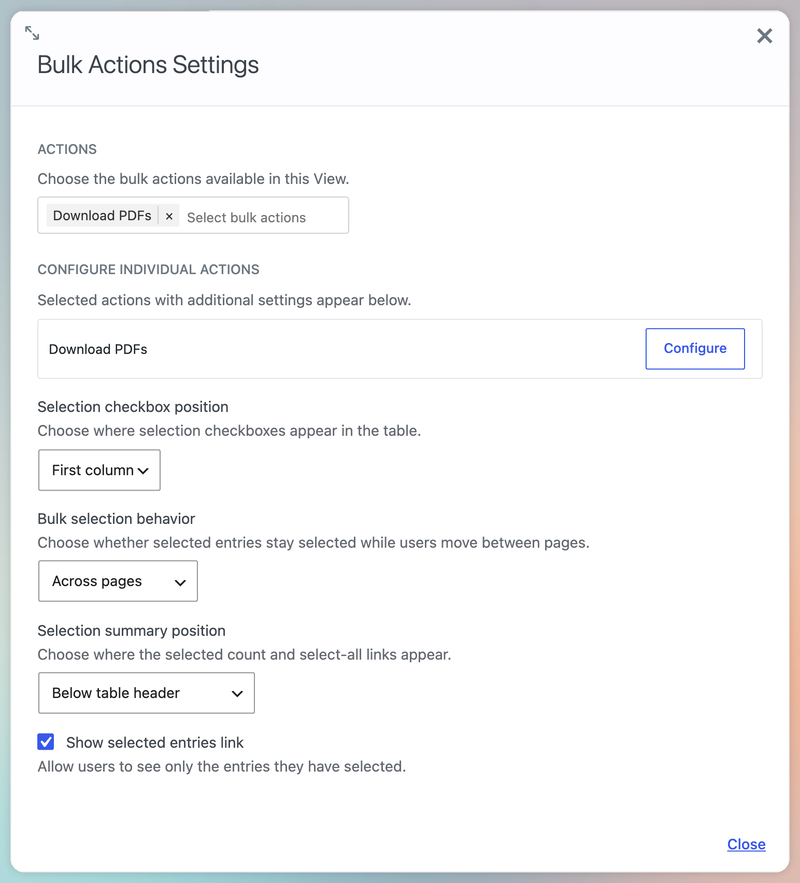
How it works:
- Each selected entry is saved as its own Single Entry PDF, using the Single Entry PDF settings.
- Only users who can edit GravityView entries can run it (by default, the Author, Editor and Administrator roles). A developer can change who can use it.
- The zip is named after the View and the date, e.g.
Staff-Directory-documents-2026-09-21.zip. - Each PDF is named after the Single Entry PDF's Filename, with the entry ID added to the end, eg.
Staff_Directory-45.pdf.
Attaching PDFs to Form Notifications
You can attach a View's Single Entry PDF to the emails Gravity Forms sends when the form is submitted. On the Single Entry PDF settings tab, tick the notifications under Form Notifications. When one of those notifications is sent, the new entry's PDF is attached. On a View that joins forms with the Multiple Forms extension, you can pick notifications from any of the joined forms, and a PDF is attached for each row the new entry appears in.
The setting only appears when the View form has at least one notification.
PDF Settings
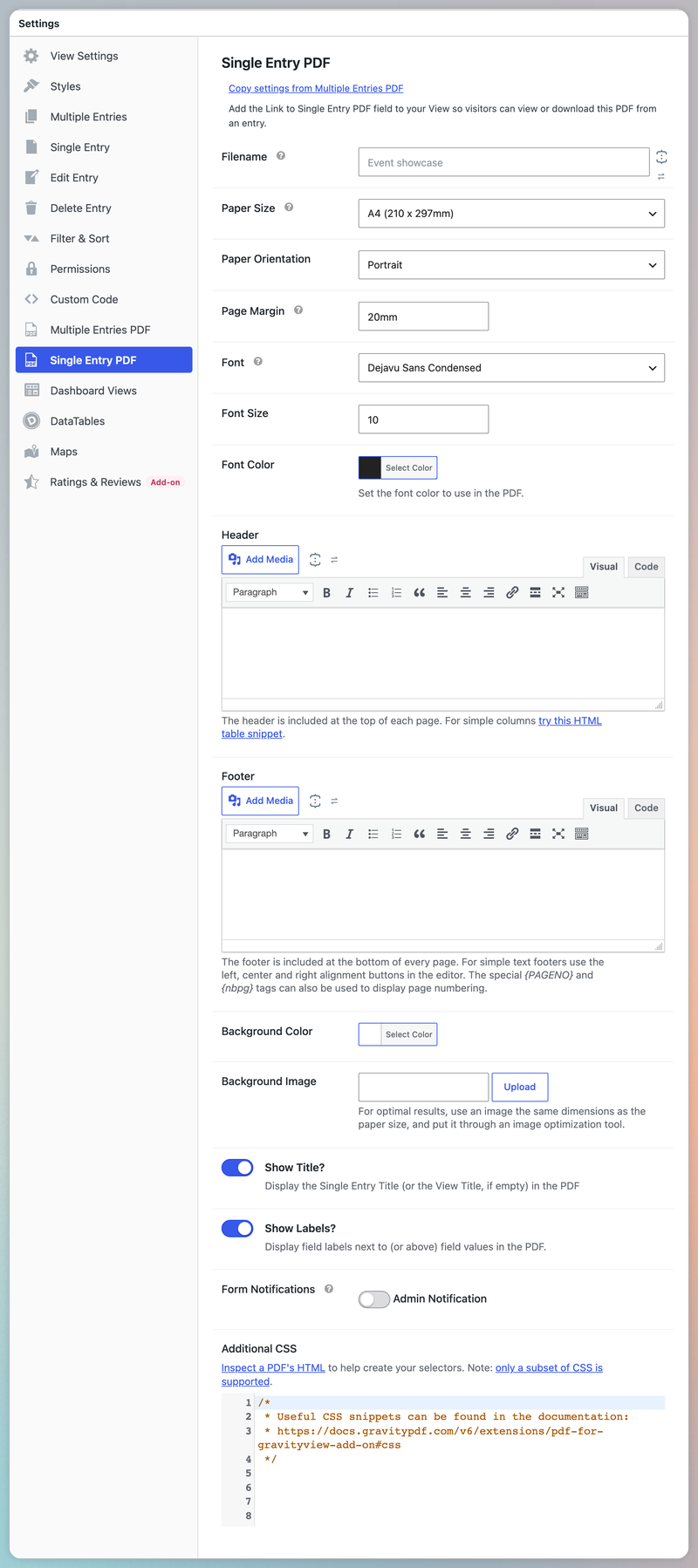
The Single Entry PDF tab in the View Settings meta box has the same settings as the Multiple Entries PDF tab, with these differences:
- Filename supports Gravity Forms merge tags. Merge tags are replaced with the entry's values when the PDF is saved. For example,
{Name:3}_Personal_Flyer.pdfbecomesGravity PDF_Personal_Flyer.pdf. - Show Title displays the Single Entry Title or, if that's empty, the View title.
- Header and Footer support Gravity Forms merge tags.
- Form Notifications is only on this tab. See Form Notifications.
Features for Both PDF Types
Watermark Settings
If the Gravity PDF Watermark extension is active on your site, you can add a text or image watermark to your PDFs. The settings are on both PDF tabs, so each kind of PDF can have its own watermark:
Enable Watermark
- Turns the text and image watermarks on.
Image Watermark
- Displays an image watermark in the center of every page.
- For best results, use a transparent PNG the same size as the Paper Size.
- Keep the image under 1MB so the PDF generates quickly and the file stays small.
Text Watermark
- Displays a text watermark diagonally across the center of every page.
- Any valid UTF-8 character can be displayed, as long as the Watermark Font supports it.
- You can use a text and an image watermark together.
- Merge tags are supported.
Watermark Font
- The font used for the Text Watermark.
- Install more fonts with the Font Manager.
Opacity
- Sets the transparency of both watermarks, from 0 to 100%.
- 0% is fully transparent, and 100% is fully opaque.
Maps in PDFs
A View using GravityView Maps can have its maps displayed in the PDF. This is an opt-in feature, and uses Google's Static Maps API to render the images.
Google charges for Maps Static API requests, and each map in a PDF is one request. PDFs can be cached, which can help reduce the number of static map requests.
To turn it on:
- In your Google Cloud Console, enable the Maps Static API for a project and create an API key.
- Restrict the key by IP address using your web server's IP
- In your WordPress admin area, go to GravityKit → Settings → GravityView Maps, and paste the key into the Static Maps Key setting. It's a separate setting, under the Geocoding Key.
- Click Check Key. It tells you whether the key works, or why it doesn't (for example, the API isn't enabled or the key is restricted by referrer).
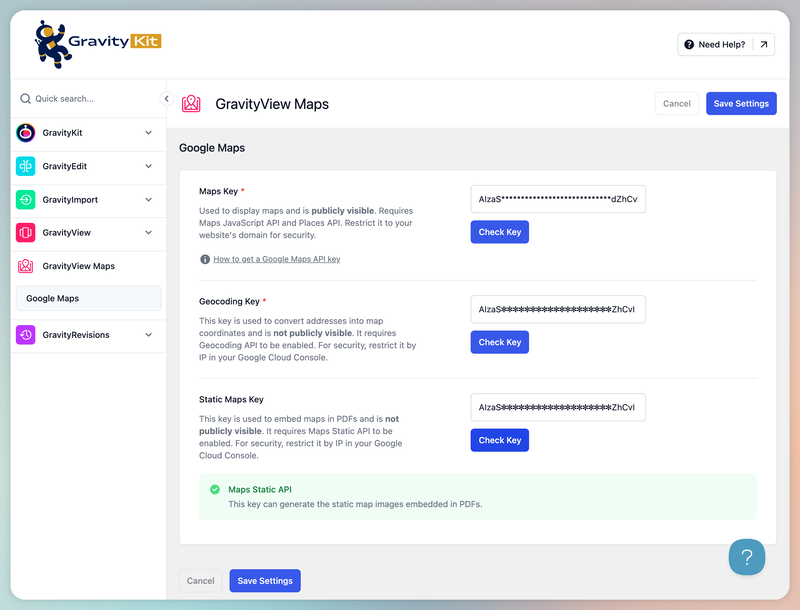
A developer can also supply the key in code instead.
Once the key is set up, the maps will appear in these places:
- The Multiple Entries Map widget shows every entry in the Multiple Entries PDF on one map, with a marker per entry (up to 100).
- The Entry Map field shows the entry's location in the Single Entry PDF, and in each row of the Multiple Entries PDF (up to 25 different maps per PDF, after which the remaining rows have no map).
Both gain a PDF Map Layout setting, which controls the shape of the map image:
- Square (Entry Map field default)
- Landscape (widget default)
- Portrait
The PDF map is an image, so a few things work differently from the map on your website.
Field Visibility and Exclusions
The PDF is built from the fields in your View. Most fields get two extra visibility settings to control what's included in the PDF, which work the same way in both Multiple and Single PDFs.
Exclude from PDF
- Enable this if a field should show on your website, but not in the PDF.
- This setting is disabled by default, so every View field (except these) is displayed in the PDF.
Only Include in PDF
- Enable this if a field should not show on your website, but should be in the PDF.
- This setting is disabled by default.
Exclusions
These GravityView fields are never included in the PDF:
- Link to Single Entry PDF
- Share Single Entry PDF
- Link to Edit Entry
- Duplicate Entry
- Delete Entry
- Approve Entries
- Unsubscribe (Cancel Subscription)
- Gravity Forms (the embedded form field)
- Rate Entry (the Ratings & Reviews form)
- Workflow Approval Links (Gravity Flow)
Widgets in the Multiple Entries layout are also excluded, but you can include the Map widget (see Maps in PDFs).
PDF Links Outside a View
You can link to a View PDF from anywhere on your site. Use the [gv_pdf_link] shortcode in a page, post or GravityView Custom Content field, or the {gv_pdf_link} merge tag in a Gravity Forms confirmation or notification.
Shortcode
[gv_pdf_link view_id="12" secret="a1b2c3d4e5f6" entry_id="45"]Download your certificate[/gv_pdf_link]
The shortcode will generate a download link for a View's Multiple Entry or Single Entry PDF. The text between the tags is the link text, which defaults to "Download PDF".
The shortcode accepts these attributes:
view_id: the View's ID. Optional in that View's Custom Content field.secret: the View's secret. Required when the View's Enhanced Security setting is on (the default for new Views). See Enhanced Security.entry_id: the entry for a Single Entry PDF. Optional in a Custom Content field, which uses the displayed entry/ies.layout:single(default) ormultiple.entries: how many entries a Multiple Entries PDF includes:all,default(the View's page size) or a number up to 500. Overrides the widget's Number of Entries to Display.post_id: the page or post the View is embedded on, which opens the PDF from there.action:downloadforces the PDF to download instead of opening in the browser.expires: how long the link is valid, in the Link Expiration format. Defaults to the View's Link Expiration, or if it has none, 1 day inside a View and 10 days elsewhere.return:urloutputs only the URL, not a link.link_atts: extra link attributes, eg.link_atts="class=button&target=_blank".
Some examples:
A Multiple Entries PDF: [gv_pdf_link view_id="12" layout="multiple" entries="all"]Download the full directory[/gv_pdf_link]
A Single Entry PDF link that expires in 7 days: [gv_pdf_link view_id="12" entry_id="45" action="download" expires="7 days"]
The raw download URL: [gv_pdf_link view_id="12" entry_id="45" return="url"]
Apart from entry_id="{entry_id}" merge tags can't be used in shortcode attributes.
Merge Tag
{gv_pdf_link:12:secret,a1b2c3d4e5f6}
The merge tag outputs the raw PDF URL (not a link). In a confirmation or notification, a Single Entry PDF is always for the entry that was just submitted. Add options after the View ID, separated by colons:
- View ID: the View's ID. Optional inside that View, such as in a Custom Content field.
secret,<secret>: the View's secret. Required when the View's Enhanced Security setting is on (the default for new Views). See Enhanced Security.layout,<single or multiple>:single(default) ormultiple.entries,<all, default or a number>: how many entries a Multiple Entries PDF includes, the same as the shortcode'sentries.post,<post ID>: the page or post the View is embedded on, which opens the PDF from there.download: forces the PDF to download instead of opening in the browser.expires,<length>: how long the link is valid, the same as the shortcode'sexpires.
The merge tag dropdown has a "PDF Link" option for each View connected to the form. It adds the secret for you, and is only shown to users who can edit the View when Enhanced Security is on.
Some examples:
A Multiple Entries PDF URL: {gv_pdf_link:12:layout,multiple:entries,all}
A Single Entry PDF URL that expires in 7 days: {gv_pdf_link:12:download:expires,1 week}
A Single Entry PDF URL in a View's Custom Content field: {gv_pdf_link:download}
To display a link instead of the URL, put the merge tag in a link's href. In a notification's message, switch the editor to the Text tab first:
<a href="{gv_pdf_link:12:secret,a1b2c3d4e5f6}">Download your certificate</a>
Who Can Create a Link
A signed link lets anyone who has it open the PDF, so the shortcode and merge tag check where they've been used before creating one:
- Enhanced Security. When the View has GravityView's Enable Enhanced Security setting turned on, the shortcode or merge tag must include the View's
secret. You'll find it in the View's Embed Shortcode. A shortcode inside the View Custom Content field doesn't need it. - Pages and posts. The author of the page or post must be able to view Gravity Forms entries (the
gravityforms_view_entriesorgform_full_accesscapability). The author is checked, not the visitor. - Notifications and confirmations. The View must display entries from the form being submitted.
- Custom Content fields. Inside a View, the shortcode only works in a Custom Content field.
When a link can't be created, visitors see nothing. Users who can edit forms see a message explaining what's wrong, and administrators are shown a notice in the admin area.
Caching and Rate Limiting
Caching
From version 2.0, PDFs are cached on disk when GravityView caching is on.
How it works:
- Caching is on demand and PDFs are only saved to disk on the first download. Subsequent requests get the saved copy.
- A cached PDF is kept for the View Entry Cache Duration (1 day by default).
- Under normal conditions, a cached PDF is automatically replaced when the associated entry/ies, View, form, or settings are updated.
- Each user gets their own PDF cache, so conditional logic and user merge tags function correctly.
- Content that changes on its own (e.g. the
{today}merge tag) will stay the same until the cache expires. - Users who can edit Views may bypass the cache by adding
&nocache=1to the PDF URL - Developers can use
gfpdf_gv_enable_pdf_cacheandgfpdf_gv_cache_ttlto adjust the PDF cache
If you use code to dynamically alter a PDF, you may need to add the gfpdf_gv_cache_key_extra filter to auto-flush the cache.
Rate Limiting
Generating a PDF takes far more server resources than displaying a web page. From version 2.0, the number of PDFs each visitor can generate in 5 minutes is limited. This helps keep the load on your server manageable.
| PDF type | Logged out | Logged in |
|---|---|---|
| Single Entry PDF | About 100 | About 200 |
| Multiple Entries PDF (500 entries) | About 5 | About 10 |
How it works:
- Each PDF a visitor views/downloads counts toward their limit. This includes cached PDFs and PDFs sent with the Share PDF field.
- Once a visitor reaches the limit, downloads are refused until the counter resets(within 5 minutes) later.
- The two PDF types have separate limits. Larger PDFs and those with embedded Views use more of the limit.
- Downloads are counted by IP address. If your site is behind a proxy or CDN, set up the
gform_ip_addressfilter. - Users who can view Gravity Forms entries are excluded
- Developers can change the limits with
gfpdf_gv_render_budget.
Limitations
Documents are generated directly on your server, and not with a web browser. Most Views look much the same in the PDF, but a few things aren't supported or work differently:
- Creating PDFs of the Edit Entry layout aren't supported. Let us know if this feature is important to you.
- Custom paper sizes aren't supported yet. Choose the closest standard Paper Size, and let us know if you need a custom size.
- Multiple Entries PDFs are restricted to 500 entries. Developers can raise the limit if needed. Note: Larger PDFs take longer to generate and use more server resources.
- The Multiple Entry PDF widget isn't available on the Single Entry layout. But you can add the shortcode with
layout="multiple"to a Custom Content field.
Table and DataTables Views
Fields without Labels
In the Single Entry PDF, fields with no label still get an empty label column. If none of your fields have labels it looks like a wide left margin. Turn off Show Labels to remove the empty column.
Complex Content
The PDF engine can't fit complex content inside table cells. To render them correctly these fields use <div> tags instead of <table> tags:
- HTML fields.
- Embedded Views.
- Repeater fields.
- Paragraph fields that use the rich text editor.
- Custom Content fields that contain the
{all_fields}or{pricing_fields}merge tag.
This has the following effect on the PDFs:
- Single Entry PDF: only the affected rows use
<div>tags, and the remainder of the table is unchanged. A field whose value contains block content, such as paragraphs or lists, is also output this way. - Multiple Entries PDF: if any column contains one of these fields, the whole table uses
<div>tags, and the column headings no longer repeat at the top/bottom of each page. To keep a real table, exclude the fields listed above from the PDF.
If you want to add custom styles to these fields you'll need to target the <div> tags, and not table cells. Refer to the CSS examples for the Single Entry PDF and Multiple Entries PDF.
DIY Views
Unlike the other View types, DIY Views have no fixed layout and you can design almost anything. The PDF engine doesn't yet support modern CSS layout like Flexbox or Grid, so a DIY layout built for the modern web often won't look right in the PDF.
To work around this, you can use two copies of a field:
- Duplicate the field in your View.
- On the original field, enable Exclude from PDF. It will still show on your website, but not in the PDF.
- On the duplicate, enable Only Include in PDF. It shows in the PDF, but not the website.
- Modify the field markup for the PDF.
For complex layouts, create a template override for your View and use PHP, HTML and CSS to control the PDF fully.
Card Grid
Two Card Grid settings work differently in the PDF:
- Card Minimum Width can print fewer columns. A PDF page is narrower than most browser windows. If the cards would be narrower than the Card Minimum Width, the PDF uses fewer columns until they fit. For example, a three-column View with a minimum width of 280px prints as two columns on A4 portrait.
- Equal Height makes large PDFs generate slower. Each card is measured before the grid is laid out, which takes longer as the number of entries grows. Try turning Equal Height off if this is the case.
Maps
A PDF map is a still image, not an interactive map, so a few things work differently from the map on your website:
- 100 markers per widget map. The Multiple Entries Map widget shows up to 100 markers. A developer can change this limit.
- 25 field maps per PDF. A Multiple Entries PDF shows up to 25 Entry Map field maps, and rows past that have no map. The Multiple Entries Map widget doesn't count toward this. A developer can change this limit.
- 5 marker icons per map. This limits the number of different icons, not markers. Markers that use a sixth or later icon show the default pin instead.
- Large maps lose styles. Google limits the size of each map request. When a map has too many markers, its custom map style is removed first, then markers, until it fits.
- PNG, JPEG or GIF icons only. A custom marker icon also needs a public
httpsURL with no query string. Other icons, including SVGs, show Google's default pin instead. - No panning or zooming. Visitors can't move the PDF map, and anything they did on the website map isn't carried into the PDF.
New in 2.0
PDF for GravityView 2.0 adds PDFs of Multiple Entries Layouts, maps, bulk downloads and more:
- Multiple Entries PDFs. Create a PDF of your View's Multiple Entries layout, for every View type. See Multiple Entries PDFs.
- Maps. Show GravityView Maps in your PDFs. See Maps in PDFs.
- Bulk downloads. Download Single Entry PDFs for the selected entries as a ZIP file. See Downloading PDFs in Bulk.
- Vantage theme. PDFs match the View's Vantage theme, including its Card Grid settings. See View Themes.
- PDF links outside a View. Add a PDF link anywhere with the
[gv_pdf_link]shortcode or{gv_pdf_link}merge tag. See PDF Links Outside a View. - Faster and safer. PDFs are cached when GravityView's caching is on, and rate limiting stops bad actors overloading your server. Share/Email a PDF also has sending limits for each sender, recipient and site.
- New settings. Turn field labels on or off with Show Labels, and set the submit button colors on the Share/Email a PDF field.
- More GravityView features supported. Embedded Views, Featured Entries, A-Z Filters, and unioned entries from Multiple Forms.
- Image galleries. Add
gv-galleryto a File Upload field's Custom CSS Class to show its images as thumbnails, three to a row. See Display images as a gallery. - Merge tags. Custom Content fields that include
{all_fields}and{pricing_fields}tags now display them correctly in the PDF. - Translations. New Italian and formal German translations, and the Simplified Chinese translation now loads.
- For developers. The new create_multiple_entry_pdf() method, 37 new hooks (including custom PDF themes), and warnings when a template override is out of date.
Upgrading to 2.0
Version 2.0 is a major update. Most sites need no changes, but some existing PDFs will look or behave differently.
Before You Upgrade
- Check your server meets the new requirements: PHP 7.4+, WordPress 6.6+ and GravityView 3.0.1+. See the Prerequisites.
- Back up your site.
- If you've customized your PDFs with CSS, template overrides or code, test the update on a staging site first.
What Changes for Existing Views
These changes apply automatically when you upgrade.
PDF appearance:
- Vantage theme Views use the theme's colors and card styles. See View Themes.
- Table and DataTables Single Entry PDFs use new HTML. They look much the same, and images now shrink to fit their cell, but CSS written for 1.x may stop working. See Upgrading Your CSS from 1.x.
- A View with no title names its PDF
document.pdf, instead of a file with no name.
PDF links:
- Links stop working when the View is unpublished or trashed, or the entry is trashed, marked as spam or unapproved. See Troubleshooting.
- Links expire after 1 year at most. Link Expiration also accepts more formats, so
2 daysor12hno longer falls back to 1 day. See Link Expiration. - A valid PDF link now opens even when the View's Prevent Direct Access setting is on.
- New Link to Single Entry PDF fields say "Download PDF". Existing fields keep "View PDF".
Share/Email a PDF:
- Each sender, recipient and site can only send so many emails an hour. See Spam Protection and Sending Limits.
- Emails are now sent when Gravity Forms background (asynchronous) notifications are on.
Limits and caching:
- Rate limiting is on. Each visitor, or group of visitors sharing an IP address, can generate a limited number of PDFs every 5 minutes. See Rate Limiting.
- PDFs are cached when GravityView's caching is on. See Caching.
If You've Customized Your PDFs
- Additional CSS for Table and DataTables Single Entry PDFs may need new selectors. See Upgrading Your CSS from 1.x.
- A 1.x template override still generates a PDF, but misses the 2.0 changes, such as the Show Labels setting, maps and the new CSS order. See Changes in 2.0, then follow the upgrade steps.
- Code that changes a PDF based on the URL, a cookie or the time can show an out-of-date cached PDF. Add those values to the cache key with gfpdf_gv_cache_key_extra.
Pdf\Renderer::is_view_entries_valid()is deprecated. UsePdf\Links\Builder::entry_belongs_to_view()instead.
Upgrading Your CSS from 1.x
Version 2.0 changed the HTML of the Single Entry PDF for Table and DataTables Views. In v1, every field was a row in one big table. In 2.0, each field is its own <table> or <div> (for fields that don't display correctly in a table cell). CSS that targets table.view or tr:nth-child(...) no longer matches anything and need updating.
Each field in a Single Entry Table PDF looks like this:
<table class="row-separator odd field-type-text">
  <tr><td class="label">Label</td><td class="value">Value</td></tr>
</table>

<!-- Fields that don't display correctly in a table cell uses a <div> instead -->
<div class="row-separator even field-type-html">
  <div class="label"><div class="cell">Label</div></div>
  <div class="value"><div class="cell">Value</div></div>
</div>
A developer can change which fields use a <div> using gfpdf_gv_table_div_field_types or gfpdf_gv_table_field_use_div.
Translations
The extension has been translated into these languages with the help of AI:
- English
- French
- Spanish
- German (including a formal variant)
- Italian
- Dutch
- Portuguese
- Simplified Chinese
- Russian
To translate it into another language, follow this guide. The text domain is pdf-for-gravityview.
Troubleshooting
If you can't resolve a problem, open a support ticket and our friendly team will be happy to help.
"The PDF is no longer accessible"
The link has expired or been changed, or its View isn't published:
- The link expired. Each PDF link works for a set time after it's shown in a View (1 day by default). Open the View again to get a fresh link. If your site uses a page cache, verify the Link Expiration is longer than your page cache expiration.
- The link was changed. Each PDF link is signed, so changing any part of the URL breaks it (this includes the domain). Open the View again and use a fresh link.
- The View isn't published. Links stop working when the View is trashed, changed back to a draft or are made private. Users who can see a private View can still open its PDFs. A developer can turn this off.
"There was a problem with the request" or "There was a problem processing the request"
- "There was a problem processing the request" means the link is incomplete. The
expiresorsignaturepart at the end of the URL is missing. Try open the View again and use a fresh link. - "There was a problem with the request" means the View or entry the link points to was permanently deleted and the PDF cannot be created.
"You are not allowed to view this content"
The View no longer shows the entry, so it won't create its PDF either. This happens when:
- The entry was trashed or marked as spam.
- The View only shows approved entries, and the entry isn't approved. Users who can moderate entries can still open the PDF when the View's Show all entries to administrators setting is on.
- The View has no form connected.
Restore or approve the entry, or reconnect a form to the View.
"There was a problem generating the PDF"
The link is valid, but something went wrong while the PDF was being created. Visitors only see this generic message. To view the actual error, log in as a user who can view Gravity Forms entries and open the PDF link again. The error is also recorded in the log files, when enabled.
Common causes:
- The PDF is too large. Large Multiple Entries PDFs can run out of PHP memory or time. Lower the widget's Number of Entries to Display, or ask your web host to raise PHP's memory and time limits.
- A template override or custom code has an error. If the error names a file in your theme or PDF Working Directory, fix or remove that file.
"There have been too many PDF requests from this connection"
The visitor has reached the rate limit. The message says how long to wait before trying again.
Views are counted by IP address, and everyone sharing a connection (like an office) is counted together. If this occurs you may need to adjust the limit.
- Raise the limit. A developer can
The PDF is out of date
When caching is on, PDFs can be served from the cache. Editing the entry, View, form or PDF settings, or updating the plugin, creates a fresh PDF straight away.
If you download an outdated PDF you can:
- Get a fresh PDF: add
&nocache=1to the PDF URL. You need to be logged in as a user who can edit Views. - **Cache Timeout: ** lower the View's Entry Cache Duration. This also shortens GravityView's own cache for the View. To change only the PDF cache, a developer can use
gfpdf_gv_cache_ttl. - Dynamic Content: If using a hook or custom template to display dynamic PDF content, use the
gfpdf_gv_cache_key_extrafilter to register with the cache auto-flush feature.
A field is missing from the PDF
Check the following:
- The field is in the View. The PDF only shows fields added to the View's Single Entry or Multiple Entries layout.
- The field isn't excluded. Make sure the field doesn't have Exclude from PDF turned on. See Field Visibility and Exclusions.
- The field is supported. Action fields, such as Link to Edit Entry and Delete Entry, and Multiple Entries widgets are never included. See the full list.
- The template is up to date. An old template override may not support newer fields, such as the View field. Check System Status for an Outdated GravityView Templates row.
If only the label is missing, check the Show Labels setting.
The map is missing or blank in the PDF
Check the following:
- The Static Maps Key works. Click Check Key to test it. See Maps in PDFs. The most common problems are a key restricted by HTTP referrer instead of IP address, and the Maps Static API not being enabled for the key's project.
- The map isn't excluded. Make sure the map field doesn't have Exclude from PDF turned on.
- The PDF is under the map limit. A Multiple Entries PDF includes only the first 25 Entry Map field maps. Lower the Number of Entries to Display, or show every entry on one map with the Multiple Entries Map widget. A developer can also change the limit.
- Google responded in time. "Map could not be rendered." means your server couldn't get the map from Google in time. Servers with a slow connection or an outbound proxy may need a longer timeout.
- Google Quotas. You may have exceeded the request quota set in your Google Cloud Services account. Review the GCS logs.
The bulk download never finishes, or the link expired
- The progress never moves. When 5 or more entries are selected, Download PDFs creates the PDFs in the background with WordPress's scheduled tasks. Check that WP-Cron is running on your site.
- The Download ZIP link expired. The link works for 1 day, and only for the user who ran the export. Run the export again to get a fresh link. A developer can keep the ZIP for longer.
- "The PDF export folder could not be created." The PDFs are saved in your server's temporary folder before they're zipped. Ask your web host to make sure WordPress can write to it, or set a writable folder with the
WP_TEMP_DIRconstant inwp-config.php. - "No PDFs could be generated for the selected entries." Every PDF in the export failed. Open one of the entries' Single Entry PDFs to see why. See There was a problem generating the PDF.
- "The secure download link could not be created." The ZIP was made, but its download link wasn't. Run the export again. If it keeps happening, check the logs.
The PDF isn't attached to a form notification
When the PDF can't be attached, the notification is still sent without it, and no error is shown. Check the following:
- The notification is selected. On the View's Single Entry PDF tab, the notification is ticked under Form Notifications.
- The View shows the form's entries. The View must display entries from the form that was submitted. For a joined View, that can be any of its joined forms.
- The log has no errors. Turn on Gravity Forms logging, submit the form again, and search the logs for errors.
The shortcode or merge tag doesn't show a link
When the [gv_pdf_link] shortcode or {gv_pdf_link} merge tag can't create a link, visitors see nothing. To see why, log in as a user who can edit forms and view the page again. A message explains the problem, for example:
- "
[gv_pdf_link]shortcode: No "view_id" attribute was given, and it is not inside a View. Add the View ID, for example[gv_pdf_link view_id="12"]." - "
{gv_pdf_link}merge tag: View #12 was not found. Check the View ID in the merge tag. The View may have been deleted or moved to the trash." - "
[gv_pdf_link]shortcode: View #12 has Enhanced Security turned on, so the shortcode needs the "secret" attribute from that View." - "
[gv_pdf_link]shortcode: It only works in a Custom Content field. Move it into one." - "
[gv_pdf_link]shortcode: It needs a page or post author to authorize it. Move it into page or post content."
Administrators also see a notice in the admin area that names the page, or the form for a notification. See Who Can Create a Link for the rules.
How do I use my own font in the PDF?
You can use any custom font installed in Gravity PDF. Add a new font with the Font Manager, then choose it in the View's Font setting.
Developers
There are four ways to customize the PDFs further, from simplest to most involved:
- CSS: restyle the PDF with the Additional CSS setting.
- Hooks: change how PDFs are generated with PHP filters and actions.
- API: create PDFs from your own code.
- Template overrides: replace the PHP template a PDF is built from.
CSS
Add these snippets to the Additional CSS setting. The Single Entry and Multiple Entries tabs each have their own Additional CSS, so add the CSS to the tab for the PDF you want to change.
Your Additional CSS is added last, after the plugin's styles and any Vantage theme styles, so your rules win.
To change the font, text size or text color of the whole PDF, use the Font, Font Size and Font Color settings instead. They don't need any CSS.
Any Layout
These examples work in every layout.
Most of them use a field's Custom CSS Class setting in the View editor. The class is added to the field in every layout, so your CSS can target that one field. The class is also added on your website, but your Additional CSS only applies to the PDF.
Highlight one field
Style one field, such as a total. Add pdf-highlight to the field's Custom CSS Class, then use this CSS:
.pdf-highlight {
  background: #FFF7D6;
  font-weight: bold;
}
Start a field on a new page
Start a field on a new page in the Single Entry PDF. Add pdf-new-page to the field's Custom CSS Class, then use this CSS:
.pdf-new-page {
  page-break-before: always;
}
Avoid page breaks in a Multiple Entries PDF. The field appears in every entry, so the page breaks once per entry, which can leave blank pages or split the Card Grid.
Display images as a gallery
Display a File Upload field's images as a gallery. Add gv-gallery to the field's Custom CSS Class. GravityView shows the images as a gallery on your website, and the PDF shows them as thumbnails, three to a row. No CSS is needed, but you can change the size of the thumbnails:
/* Four to a row, and shorter */
.gv-gallery .gv-field-file-uploads li,
.gv-field-file-uploads.gv-gallery li {
  width: 22%;
}

.gv-gallery .gv-field-file-uploads li img,
.gv-field-file-uploads.gv-gallery li img {
  max-height: 30mm;
}
Highlight featured entries
Highlight featured entries in the Multiple Entries PDF. When you use the Featured Entries add-on, each featured entry has the class gv-featured-entry:
/* List, Map, DIY and Layout Builder */
.gv-list-view.gv-featured-entry,
.gv-map-view.gv-featured-entry,
.gv-diy-view.gv-featured-entry,
.gv-layout-builder-view--entry.gv-featured-entry {
  border-left: 3px solid #1D2475;
}

/* Table and DataTables */
.gv-table tr.gv-featured-entry,
.row-separator.gv-table-row.gv-featured-entry {
  border-left: 3px solid #1D2475;
}
Table
These examples work in the Single Entry PDF, and target both the <table> and <div> fields. See their HTML. Without a theme, the PDF has no borders, matching GravityView's default.
Add a border to each cell
td.label, td.value,
div.row-separator div.cell {
  border: 1px solid #333333;
}
Increase the padding inside each cell
table.row-separator td {
  padding: 10px;
}

div.row-separator div.cell {
  padding: 0 10px;
}
Make the labels uppercase
.label {
  text-transform: uppercase;
}
Add a background color to every second field
table.even td,
div.row-separator.even {
  background: #EEEEEE;
}
Multiple Entries Table
The Multiple Entries PDF for Table and DataTables Views is built with one of two layout engines, and each outputs different HTML. To check which one your PDF uses, inspect its HTML.
Table engine. This is the default. The PDF is a table with the class gv-table, and each entry is a row with the class odd or even:
<table class="gv-table">
  <thead><tr><th class="label">Label</th></tr></thead>
  <tfoot><tr><th class="label">Label</th></tr></tfoot>
  <tbody>
    <tr class="odd">
      <td class="field-type-text"><div class="value">Value</div></td>
    </tr>
  </tbody>
</table>
Floated engine. This is used when a column holds a field that can't fit in a table cell, such as an HTML field. The column headings are a div with the class gv-table-header. Each entry is a div with the classes row-separator and odd or even, and each cell is a div with the class column:
<!-- The column headings, printed above the first entry and again below the last -->
<div class="row-separator gv-table-header">
  <div class="column label">Label</div>
</div>

<!-- One row per entry -->
<div class="row-separator odd">
  <div class="column field-type-text"><div class="value">Value</div></div>
</div>
These examples include CSS for both engines.
Add a background color to every second row
/* Table engine */
.gv-table tr.even td {
  background: #EEEEEE;
}

/* Floated engine */
.row-separator.even {
  background: #EEEEEE;
}
Change the look of the column headings
/* Table engine */
.gv-table th {
  background: #1D2475;
  color: #FFFFFF;
}

/* Floated engine */
.gv-table-header {
  background: #1D2475;
}

.gv-table-header .label {
  color: #FFFFFF;
}
Remove the cell borders from the table engine
.gv-table th, .gv-table td {
  border: none;
}
List
These examples work in both the Single Entry and Multiple Entries PDF.
Make the Listing Title uppercase
.gv-list-view-title h3 {
  text-transform: uppercase;
}
Change the Listing Header colors
Change the background color of the Listing Header, and the text color of the Listing Title and Subtitle:
.gv-list-view-title {
  background: #1D2475;
  color: #FFFFFF;
}

.gv-list-view-title h3,
.gv-list-view-title h4 {
  color: #FFFFFF;
}
Change the width of the Image
Change how much space the Image takes up in the main content area:
.gv-list-view-content-image {
  width: 50%;
}
Make the labels bold
Make the labels bold in the Image and Other Fields section:
.gv-list-view-content .gv-field-label {
  font-weight: bold;
}
Map
These examples work in both the Single Entry and Multiple Entries PDF.
Make the Title uppercase
.gv-map-view-title h3 {
  text-transform: uppercase;
}
Change the Header colors
Change the background color of the Header, and the text color of the Title:
.gv-map-view-title {
  background: #1D2475;
  color: #FFFFFF;
}

.gv-map-view-title h3,
.gv-map-view-title h4 {
  color: #FFFFFF;
}
Change the width of the Image
Change how much space the Image takes up in the main content area:
.gv-map-view-content-image {
  width: 50%;
}
Make the labels bold
Make the labels bold in the Image and Other Fields section:
.gv-map-view-content .gv-field-label {
  font-weight: bold;
}
Style the map caption
Change the style of the map caption, shown under the Multiple Entries Map widget:
.gfpdf-static-map-caption {
  font-style: italic;
  color: #666666;
}
Layout Builder
Each row of a Layout Builder View has the class gv-grid-row, and each column in a row has the class gv-grid-col. Each field is inside a div with the class gv-field-wrapper.
Add space between the rows
.gv-grid-row {
  margin-bottom: 5mm;
}
Make the labels bold
.gv-field-label {
  font-weight: bold;
}
Card Grid
When a Multiple Entries PDF uses the Card Grid, each card is inside a div with the class gv-card-cell. To change the space between cards, use the View's Grid Gap setting, not CSS.
Change the border and background of each card
.gv-card-cell .gv-list-view,
.gv-card-cell .gv-map-view,
.gv-card-cell .gv-diy-view,
.gv-card-cell .gv-layout-builder-view--entry {
  border: 1px solid #1D2475;
  background: #F5F7FF;
}
DIY
A DIY View's HTML is whatever you build, so style your own elements and classes. These examples cover the PDF title and common HTML elements.
Increase the size of the PDF title
#form_title {
  font-size: 200%;
}
Change the style of H1 headings
h1 {
  color: #1D2475;
  text-transform: uppercase;
  font-size: 180%;
}
Make a blockquote more prominent
blockquote {
  border-left: 5px solid #1D2475;
  margin-left: 0;
  padding-left: 20px;
  font-size: 150%;
  font-style: italic;
}
Hooks
Hooks change how PDFs are generated, using PHP. Add the code to your theme's functions.php file, or use a code snippets plugin.
The hooks are grouped by what they change, with the most used first. Each hook's page lists its arguments and has an example.
Fields and Labels
- gfpdf_gv_field_middleware: leave a field out of the PDF based on its value, the user, or the PDF type.
- gfpdf_gv_show_label: show or hide the field labels, overriding the Show Labels setting.
- gfpdf_gv_view_field: change a field's label, CSS class or settings in the PDF only.
- gfpdf_gv_internal_fields_to_skip: change which field types are always left out, such as the Edit Entry link.
- gfpdf_gv_table_div_field_types: choose which field types use a
<div>instead of a<table>in a Single Entry Table PDF. - gfpdf_gv_table_field_use_div: make the same choice for one field.
- gfpdf_gv_field_star_filled and gfpdf_gv_field_star_empty: change the star images in Survey rating fields.
- gfpdf_gv_ratings_star_filled, _half and _empty: change the star images in the Ratings & Reviews Stars field.
Templates, CSS and Themes
- gfpdf_gv_template_styles: add CSS to the Single Entry PDF, the Multiple Entries PDF, or both.
- gfpdf_gv_template_arguments: add or change the variables passed to the PDF templates.
- gfpdf_gv_pdf_themes: register PDF styles for a View theme, or change the Vantage styles.
Filenames and Settings
- gfpdf_gv_pdf_filename: change the PDF's filename.
- gfpdf_gv_pdf_settings: change a Single Entry PDF's settings, such as the paper size or font, as it's generated.
- gfpdf_gv_pdf_settings_multiple: do the same for a Multiple Entries PDF.
- gfpdf_gv_pdf_metabox_settings: add your own settings to the View editor's PDF tabs, or change the defaults.
Multiple Entries PDFs
- gfpdf_gv_multiple_entries_limit: raise or lower the 500-entry limit.
- gfpdf_gv_multiple_entries_page_size_options: change the widget's Number of Entries to Display choices.
- gfpdf_gv_multiple_entries_layout: choose the layout engine for a Table View's Multiple Entries PDF.
- gfpdf_gv_directory_widget_html: include a GravityView widget's content in the PDF.
Caching
- gfpdf_gv_enable_pdf_cache: turn caching on or off, for all Views or one View.
- gfpdf_gv_cache_ttl: change how long a cached PDF is kept.
- gfpdf_gv_cache_key_request_params: cache a separate PDF for each search, when a custom template displays the search.
- gfpdf_gv_cache_key_extra: cache a separate PDF for each value your custom code uses.
Rate Limiting
- gfpdf_gv_render_budget: change how many PDFs a visitor can generate, or turn the limit off.
- gfpdf_gv_render_budget_window: change how long the limit lasts before it resets.
- gfpdf_gv_render_budget_logged_in_multiplier: change the extra allowance for logged-in users.
- gfpdf_gv_render_budget_exempt_caps: choose which users aren't limited.
Share PDF Limits
- gfpdf_gv_share_pdf_limit: change how many Share PDF emails can be sent, or turn the limits off.
- gfpdf_gv_share_pdf_limit_window: change how long the limits last before they reset.
- gfpdf_gv_share_pdf_limit_logged_in_multiplier: change the extra allowance for logged-in users.
- gfpdf_gv_share_pdf_limit_exempt_caps: choose which users aren't limited.
Bulk Export
- gfpdf_gv_bulk_export_capability: choose which users can download PDFs in bulk.
- gfpdf_gv_bulk_export_filename: change the ZIP's filename.
- gfpdf_gv_bulk_export_ttl: change how long the ZIP can be downloaded.
Maps
- gfpdf_gv_static_map_max_fetches: raise or lower the 25-map limit, when maps go blank partway through a long PDF.
- gfpdf_gv_static_map_api_key: set the Static Maps Key in code.
- gfpdf_gv_static_map_url_signature: sign map requests with your Google signing secret.
- gfpdf_gv_static_map_timeout: change how long to wait for Google to return a map.
- gfpdf_gv_static_map_scale: request a sharper map image, or a faster single-resolution one.
- gfpdf_gv_static_map_size: change the size of the map image.
- gfpdf_gv_static_map_max_height: change or remove the 120mm height limit.
- gfpdf_gv_static_map_viewport: set the map's center and zoom.
- gfpdf_gv_static_map_markers: add, move, remove or restyle markers.
- gfpdf_gv_static_map_max_markers: raise or lower the 100-marker limit.
- gfpdf_gv_static_map_caption: change or hide the "Map shows X of Y entries." caption.
Security
- gfpdf_gv_revoke_pdfs_for_unpublished_view: keep PDF links and Share PDF forms working after a View is unpublished or trashed.
API
The API lets your own code create View PDFs and read their settings. Call each method on the \PDFGV_API class, for example \PDFGV_API::create_single_entry_pdf( 50, 1234 ). Call them after the WordPress init hook has run.
- create_single_entry_pdf(): create the Single Entry PDF for one entry.
- create_multiple_entry_pdf(): create the Multiple Entries PDF, with your own search, sort and number of entries. Added in version 2.0.
- get_single_entry_pdf_settings(): get a View's Single Entry PDF settings.
Rate Limits, Caching and Permissions
These rules apply to the create_*_entry_pdf() APIs:
- Permissions: there are no permission checks. The API will create a PDF of any entry/ies in the View. Check the user's permissions yourself before handing over the PDF.
- Rate limit: the API always generates the PDF, even if the current visitor is over their rate limit. But each PDF still counts toward that limit.
- Caching: with the
downloadanddisplayoutput types, the PDF may come from the cache. Whereassavealways creates a new PDF. The file is saved in the temporary directory, and is deleted in the twice-daily cleanup once it's 12 hours old. Move it somewhere permanent to keep it, or delete it once you've finished with it.
Template Overrides
A template override is your own copy of the PHP template a PDF is built from. Use one when you need to change the PDF's HTML, not just how it looks.
Try these first. Unlike a template override, none of them need upgrading by hand after a plugin update:
- The Additional CSS setting, to change how the PDF looks.
- The
gfpdf_gv_template_stylesaction, to add CSS with code.
To create a template override:
- Find the template for your View type and PDF in the table below. The templates are in the plugin's
src/Pdf/Templates/folder. - Copy it to the PDF Working Directory. By default, that's
/wp-content/uploads/PDF_EXTENDED_TEMPLATES/. - Edit your copy. The
gfpdf_gv_template_argumentspage lists the data each template receives.
| View Type | Single Entry PDF | Multiple Entries PDF |
|---|---|---|
| Table / DataTables | gravityview-single-entry-table-template.php | gravityview-directory-entry-table-template.php |
| List | gravityview-single-entry-list-template.php | gravityview-directory-entry-list-template.php |
| Map | gravityview-single-entry-map-template.php | gravityview-directory-entry-map-template.php |
| DIY | gravityview-single-entry-diy-template.php | gravityview-directory-entry-diy-template.php |
| Layout Builder | gravityview-single-entry-layout_builder-template.php | gravityview-directory-entry-layout_builder-template.php |
Your copy is used for every View with that layout. To change one View's PDF only, see Customize a Specific View PDF.
Overrides work the same way as template overrides in Gravity PDF Core. Plugin updates won't overwrite your copy, but they won't update it either, so you'll need to upgrade it yourself.
Customize a Specific View PDF
A template override changes the PDF of every View with that layout. To change one View's PDF only, add a hyphen and the View ID to the end of your copy's filename, before .php.
For example, to change only the Single Entry PDF of the Table View with the ID 885:
- Find the View ID in the Embed Shortcode.
- Copy
src/Pdf/Templates/gravityview-single-entry-table-template.phpfrom the plugin to the PDF Working Directory. - Rename your copy
gravityview-single-entry-table-template-885.php. - Edit your copy. Your changes only apply to View 885's Single Entry PDF.
To change View 885's Multiple Entries PDF, do the same with gravityview-directory-entry-table-template.php, and name your copy gravityview-directory-entry-table-template-885.php.
When more than one template could be used, the plugin uses the first one it finds, in this order:
- The template for this View, such as
gravityview-single-entry-table-template-885.php, in the PDF Working Directory. - The template for this layout, such as
gravityview-single-entry-table-template.php, in the PDF Working Directory. - The template for this layout in the plugin.
- The Table template, if the View's layout doesn't have its own template.
Upgrading a Template Override
Plugin updates don't change your template override. It still generates PDFs, but misses any changes the update made to the plugin's template.
How You Find Out
The plugin will tell you a template is out of date:
- Forms → System Status lists each outdated copy in an Outdated GravityView Templates row, for example "
gravityview-single-entry-list-template.phpversion 0.1 is out of date. The current version is 2.0". View-specific copies, such asgravityview-single-entry-table-template-885.php, are compared with the template they were copied from. - Administrators see a notice on the Dashboard and Plugins screens: "Your GravityView PDF template overrides are outdated and your PDFs may not render correctly." Once dismissed, it stays hidden until the list of outdated templates changes.
A copy is outdated when the Version: number in its header is lower than the plugin's copy in src/Pdf/Templates/. Templates are checked when you update the plugin and each time you open System Status.
How to Upgrade
- Go to Forms → System Status and note which templates are listed.
- Find what you changed in each one.
- Make a fresh copy of the plugin's current template, and make your changes to it again. Leave its
Version:number as it is. - Open System Status again. The row and the notice go away once all your templates are up to date.
- Test a PDF for each View that uses the template, including View-specific copies. To inspect the HTML, enable PDF Debug Mode and add
?html=1to the PDF URL.
Changes in 2.0.1
Three templates were updated in 2.0.1:
| Template | Version | What changed |
|---|---|---|
gravityview-directory-entry-table-template.php | 2.0.1 | Columns use the View's Percent Width setting, footer rows added by other plugins (such as GravityMath calculations) are included, and the "no entries" message is inside the table. |
gravityview-single-entry-table-template.php | 2.1.1 | Rows output as <div> tags have the same line height as table rows. |
gravityview-single-entry-diy-template.php | 2.0.1 | Fixes a fatal error on a joined (Multiple Forms) View when an entry has no matching entry for a field's form. |
The Table templates now run the gravityview/template/table/fields filter through TableFields::filter( $fields, $context ), which passes listeners a \GV\Field_Collection as GravityView does. Copy that line into your override if a plugin you use changes the Table columns.
Changes in 2.0
The Single Entry Table template has been updated to Version: 2.1 and the remaining Single templates are Version: 2.0.
A v1 template override keeps working in 2.0, but it misses:
- The Show Labels setting. Only the
gfpdf_gv_show_labelfilters hide labels, and only in the Table, List and Map templates. - Full Vantage theme support. The theme and the plugin's shared styles are added, but they're written for the 2.0 markup, so they only partly apply.
- The new CSS order. Your Additional CSS is added before the
gfpdf_gv_template_stylesaction instead of last, so the plugin's and theme's styles win over it. - The Additional CSS escaping fix.
>is encoded and quotes get slashes, so rules such asfont-family: "Open Sans"are dropped. - The new Table markup. The Single Entry Table template outputs one table for the whole entry, so the 2.0 CSS examples don't apply.
- The View field, maps, and images that shrink to fit their table cell.
To upgrade, start from a fresh copy of the 2.0 template and make your changes again. Don't try to compare it line by line with your 1.x copy, because most of the code has moved into shared classes. Use this table to find where each part went:
| 1.x code | 2.0 replacement |
|---|---|
The three apply_filters( 'gfpdf_gv_show_label*' ) calls | ShowLabel::resolve( $settings, $view, $view_entry, '<layout>' ). It runs the same filters and adds the Show Labels? setting |
esc_html( wp_filter_nohtml_kses( $settings['additional_css'] ) ) | TemplateStyles::sanitize( $settings['additional_css'] ?? '' ), which only strips HTML tags |
The three do_action( 'gfpdf_gv_template_styles*' ) calls | TemplateStyles::emit( $view, $view_entry, '<layout>' ). It runs the same actions with an extra $context argument, and adds the shared and theme styles |
The $single_title block and $pdf_view->show_form_title() | PageTitle::output( $settings, $form, PageTitle::single( $view, $form, $entry ) ) |
Most of the inline <style> block | assets/css/pdf-common.css, added through gfpdf_gv_template_styles |
| The Table template's field markup | A <table> or <div> per field, with images capped by ImageWidth |
| The List and Map templates' card and zone markup | ZoneGap::mark(), and GravityView partials in src/Pdf/Views/ |
| The Map and Layout Builder markup | GravityView partials in src/Pdf/Views/ |