Displaying images in Gravity PDF
Gravity PDF supports a variety of methods for displaying web-compatible images in PDFs. However, loading images can cause PDF generation issues under specific circumstances and so there are limitations in place to reduce this likelihood.
It's important to be mindful how many images you include, where you are including them from, and the total filesize of all images. A good rule of thumb is to keep the combined filesize of all images under 10MB. External images can be loaded, but it requires an HTTP request for each image. So it's recommended to use images from the current web server – it is faster, less error-prone, and requires less resources to render.
Media Library Images

You can easily add media library images in the PDF Header or Footer settings thanks to the Add Media button above the settings' editor. To prevent display issues, the height of any image in the Header/Footer is restricted. But this can be overridden on a case-by-case basis. If an image is incorrectly rotated, or has a large filesize, use the image editor tool in the Media Library to reduce the size and orient the image correctly. You will then need to re-add the updated image into the Header/Footer.
You can also use an image for the page background in your PDF. The PDF engine won't scale or stretch this image, and instead repeats it across the page. For the best results, create an image with the same dimensions as the paper size and then run it through an image optimization tool before you upload.
A third option for displaying Media Library images is to add them using an HTML <img /> tag using the Custom Content method.
Image Choices

Gravity Forms v2.9 introduced an Image Choice field that lets you assign images to radio and checkbox choices so they are displayed on the front-end as users complete a form. By default, Gravity PDF will display the text label in PDFs, similar to what Gravity Forms displays on the Entry Details admin page. If you'd like to display the actual images, the Gravity PDF Core Booster extension has this feature.
Whilst native support for Image Choices is relatively new to Gravity Forms, a popular third-party add-on built by JetSloth has offered this functionality since 2017. Like the above, you'll need Gravity PDF Core Booster to display these images in your PDFs.
You might be thinking why JetSloth's add-on is still relevant now Gravity Forms has Image Choices. That's a fantastic question, and well worth exploring. There's actually a long-form article over on JetSloth.com that compares the two, but here are the cliff notes.
JetSloth Image Choices lets you:
- Add image choices to existing fields (you don't need to rebuild your form logic!)
- Allows for any image aspect ratio (not restricted to 1:1)
- Make your image choice fields pop thanks to six pre-built theme skins
- Add image choices to your Product, Options, and Shipping fields so people can visualize what they are purchasing
- Add image choices to your Survey, Quiz, and Poll fields to make forms more engaging
- Enable a Lightbox for a zoomed-in viewing experience
User-uploaded Images
These types of images are considered the most problematic of the bunch, and that's because you have limited control over the files being uploaded using the standard File Upload field. You have no say on the image ratio or quality. Users won't care about optimizing images before they upload them, so the collective size of all uploads can easily exceed 10MB, which is where PDF generation issues become more common on shared hosting providers. Because the PDF engine doesn't support EXIF rotational data, images taken from a hand-held device may also appear incorrectly rotate. These hurdles are the reason the File Upload field only displays a bullet-point list with links to the uploads in your PDFs.
To overcome these problems and automatically display user-uploaded images in Gravity PDF, we recommend our sister product Image Hopper. This plugin can downsize images and fix image rotational issues in the client's browser before images are uploaded to the server. It has the added bonus of auto-converting iOS HEIC image files to JPEG, faster upload times for users, and reduced bandwidth + file storage for your website. Plus, you can easily convert your existing File Upload fields to Image Hopper without reconfiguring all your feeds, and it'll automatically display user-uploaded images in your Core/Universal PDFs.
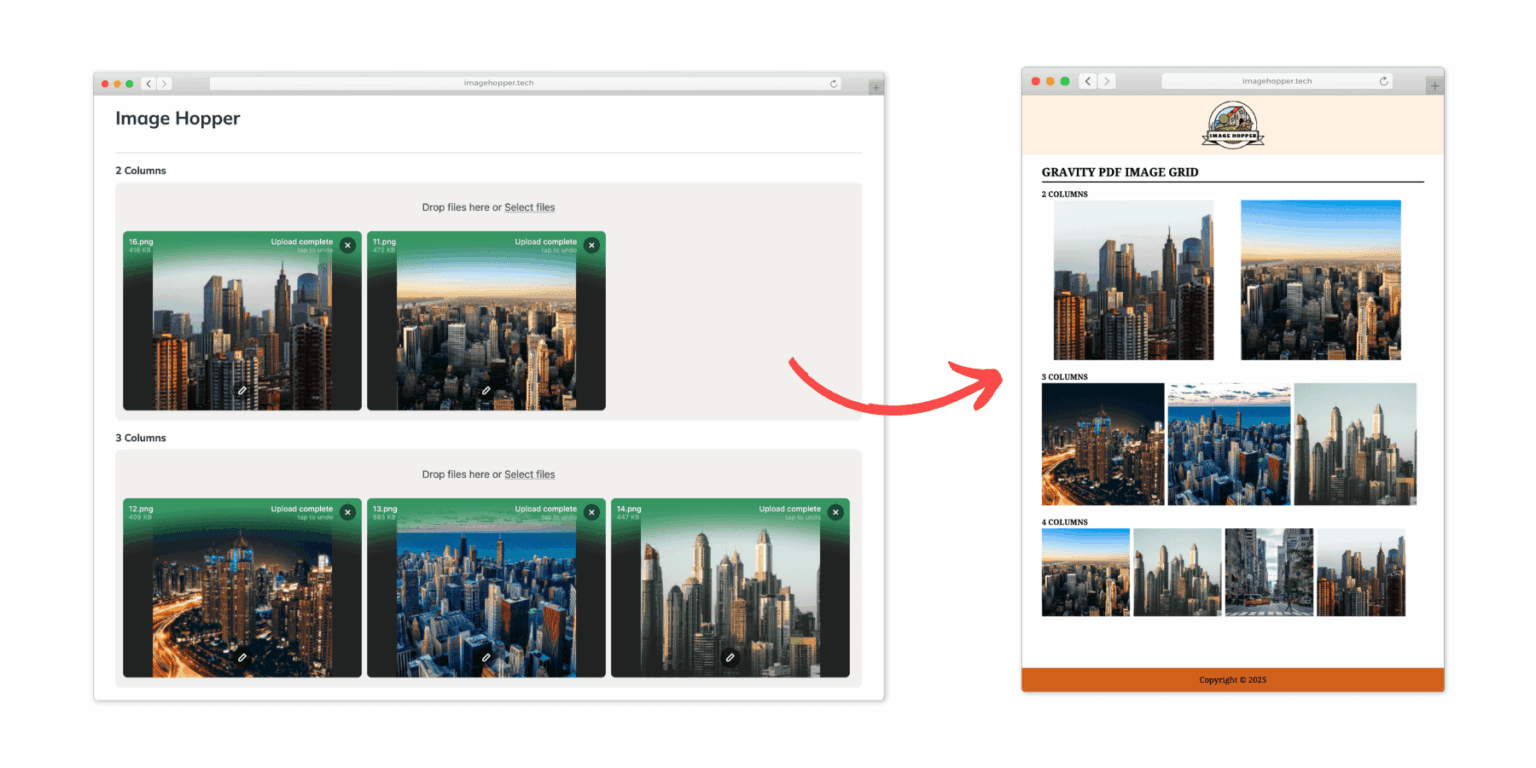
For optimal results we recommend configuring Image Hopper to downscale images to 1000 x 1000px. To display an image grid in the PDF, add one of the following CSS Ready Classes to the Image Hopper field:
- 2 Column Grid:
gf_list_2col - 3 Column Grid:
gf_list_3col - 4 Column Grid:
gf_list_4col - 5 Column Grid:
gf_list_5col
When correctly configured, Image Hopper significantly reduces the chance of PDF-generation problems due to user-uploaded images.